
Charging Stations
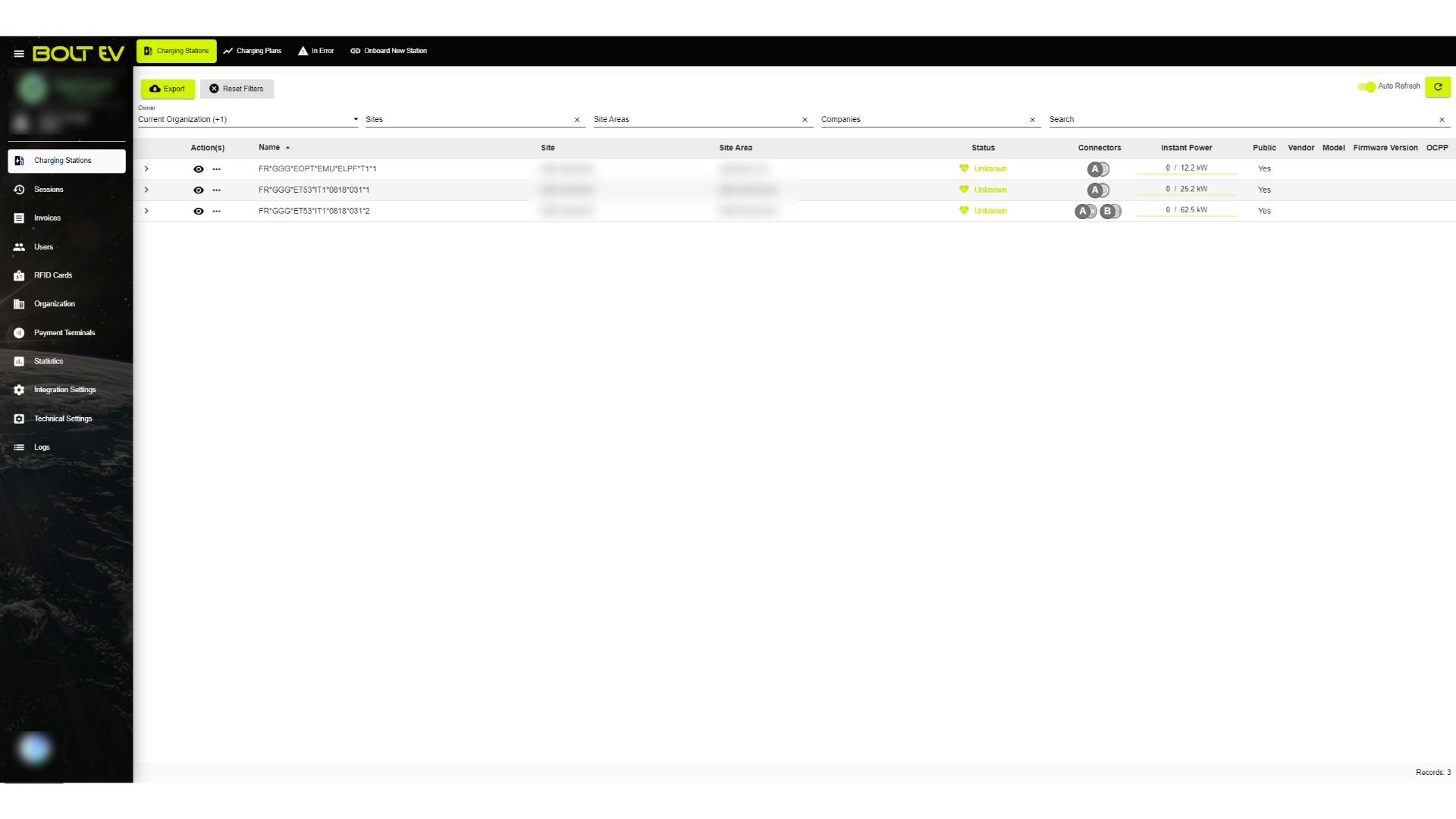
In this article, we will look in detail at the Bolt EV platform's Charging Stations section. The information given to us by the CPO's charging management platform is shown below, and it cannot be processed or modified.

Kostas Gardikiotis
Last Update 2 years ago
1. Main page
A number of details about the chargers are visible in the main menu, including the chargers' names, locations, connection status, and instantaneous power.
2. Filter by organization
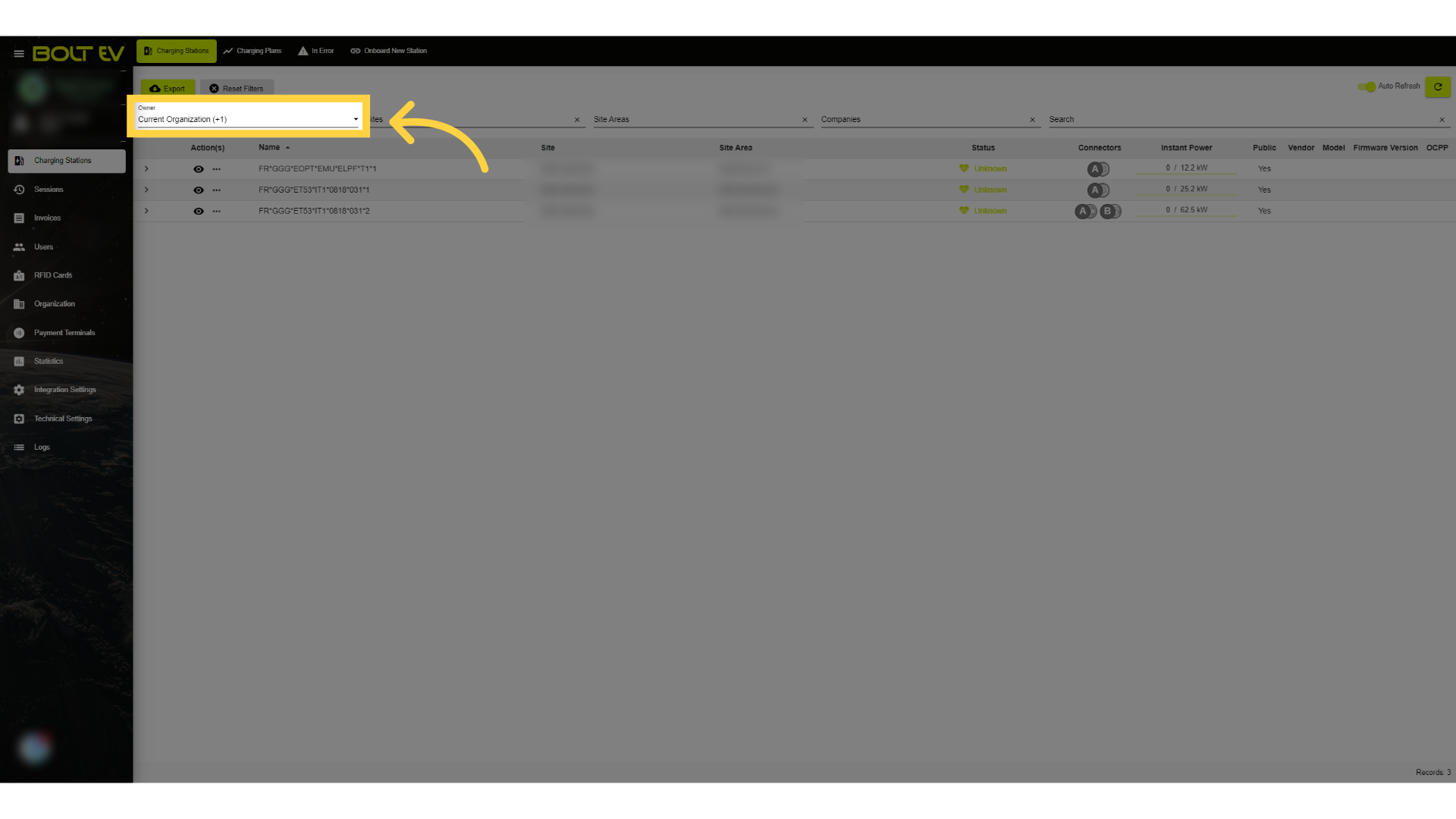
We may also filter the charging station options in a variety of ways. The first option is to determine whether the charger belongs to the present company or an external one.
3. Click "Sites"
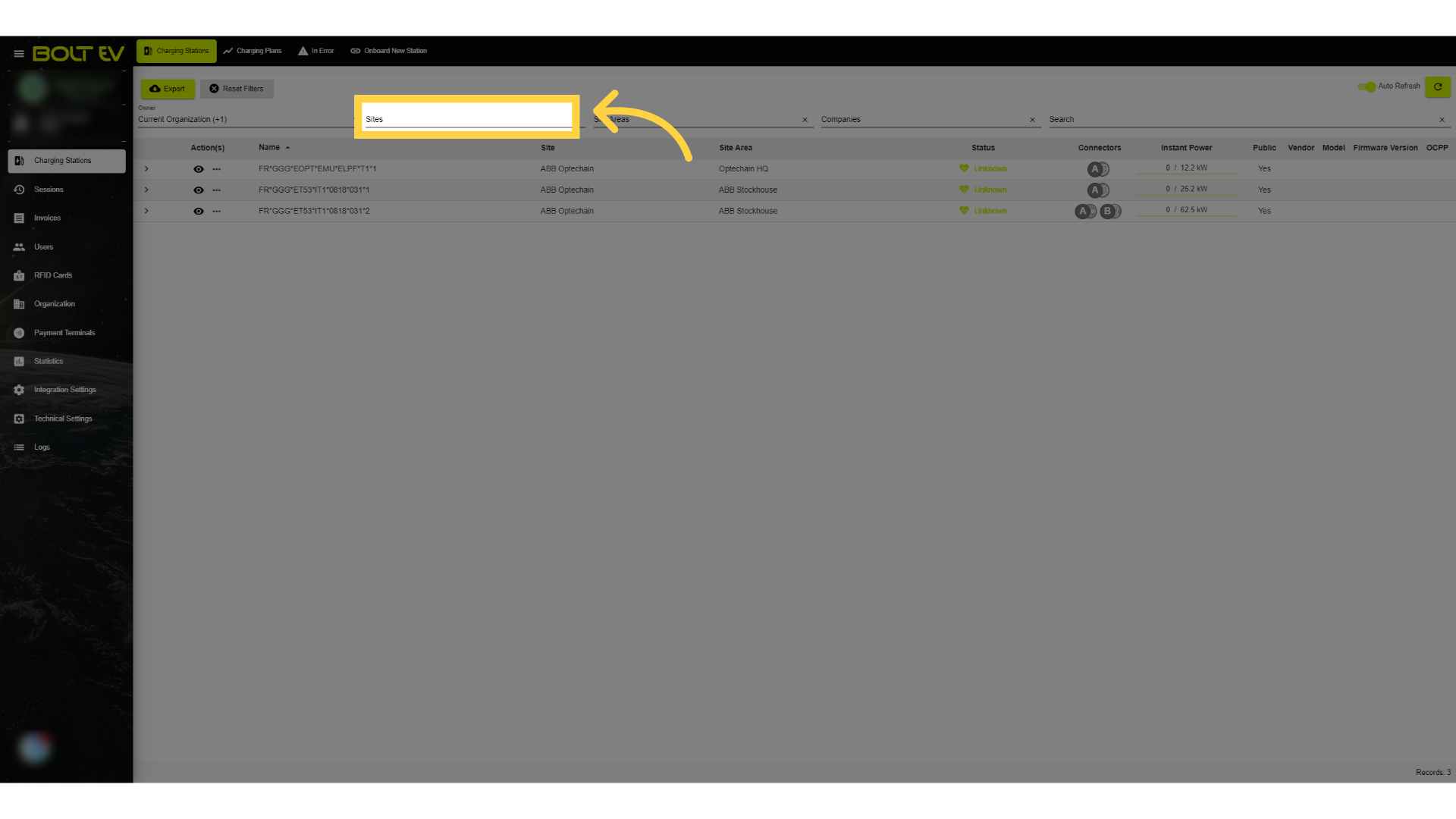
Another way is to choose the location where the charger is located.
4. Click "Site Areas"
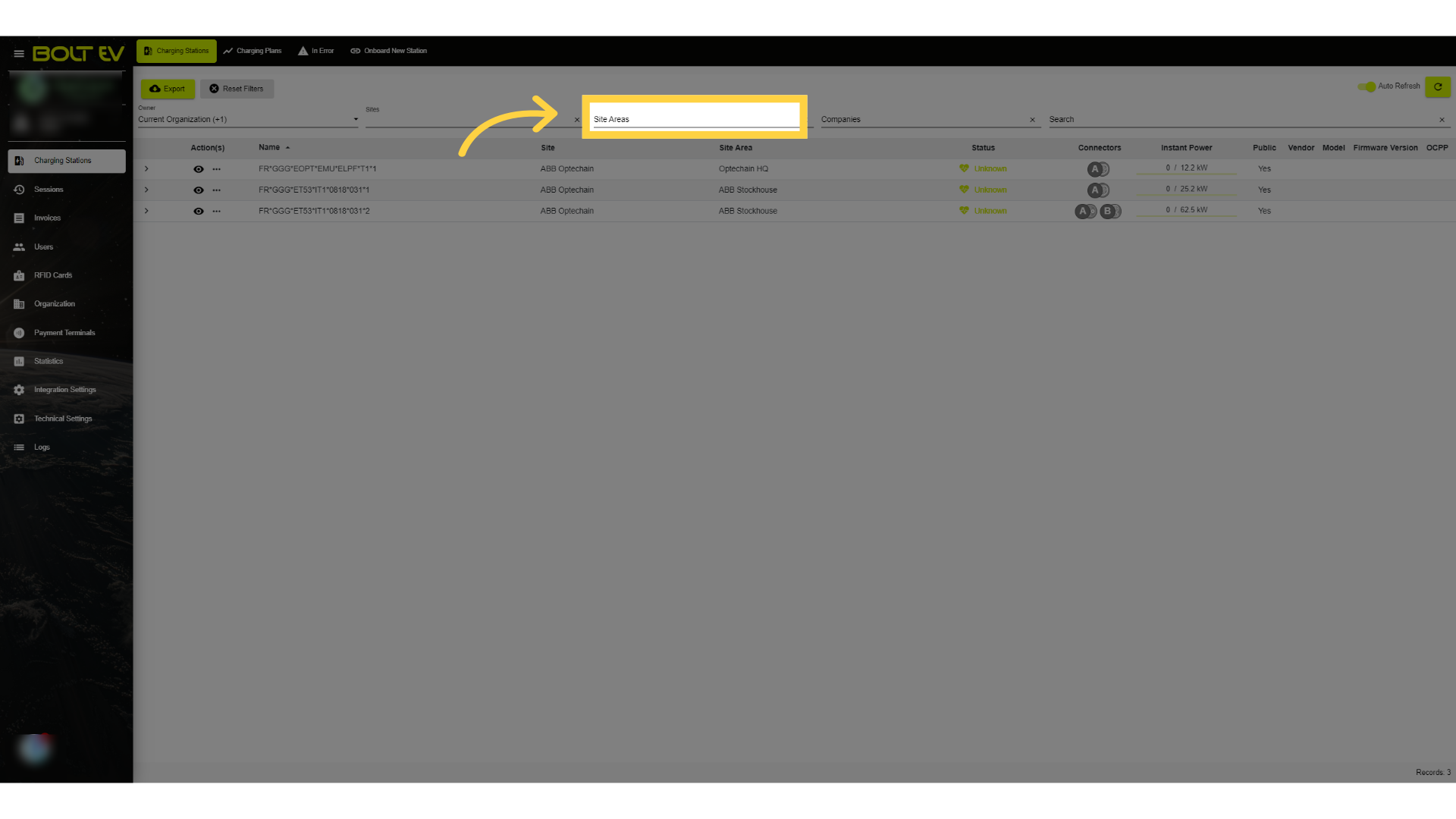
We can also filter and select the area where the desired location is situated.
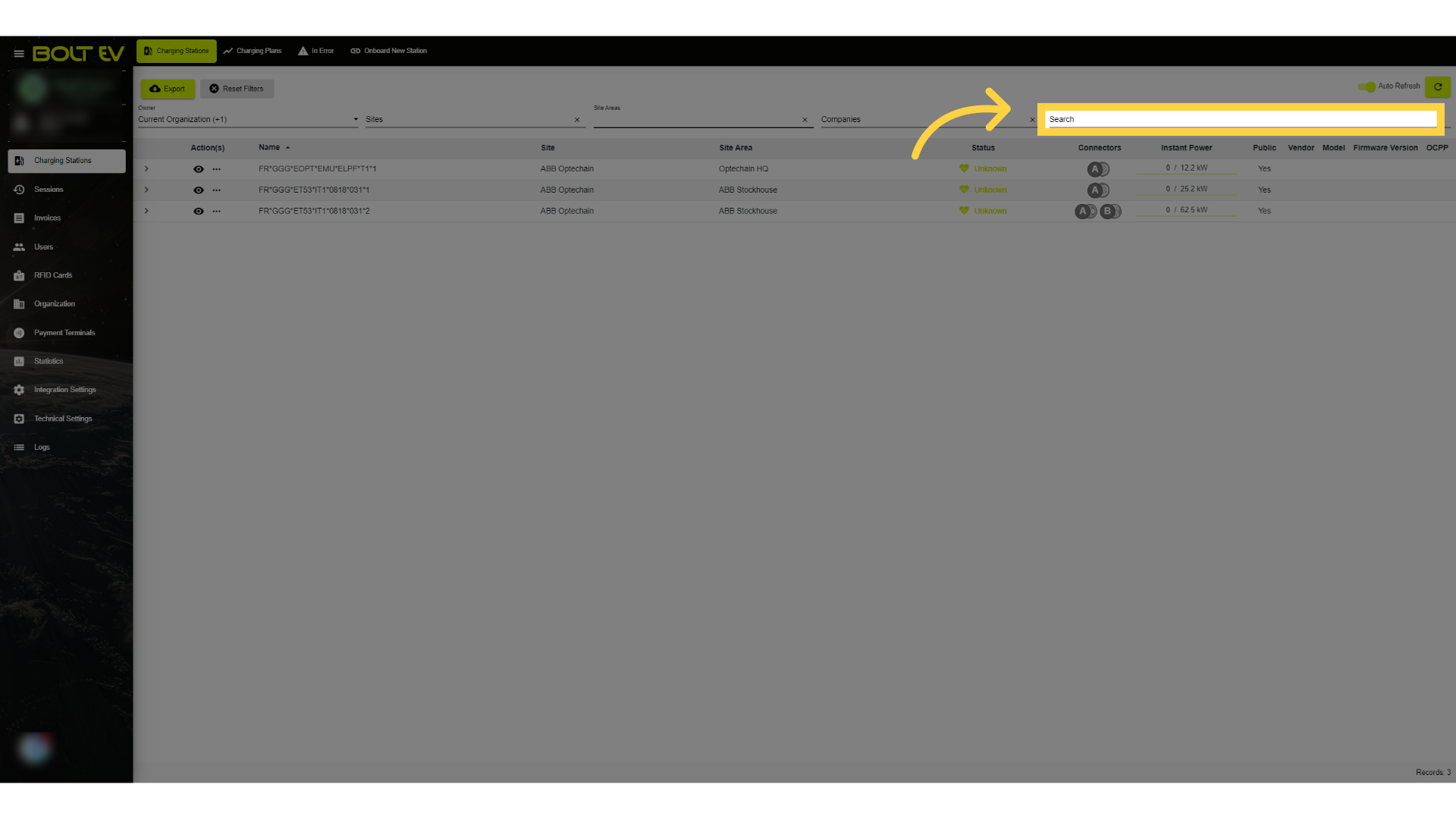
5. Click "Search"
Finally, we may use the search bar.
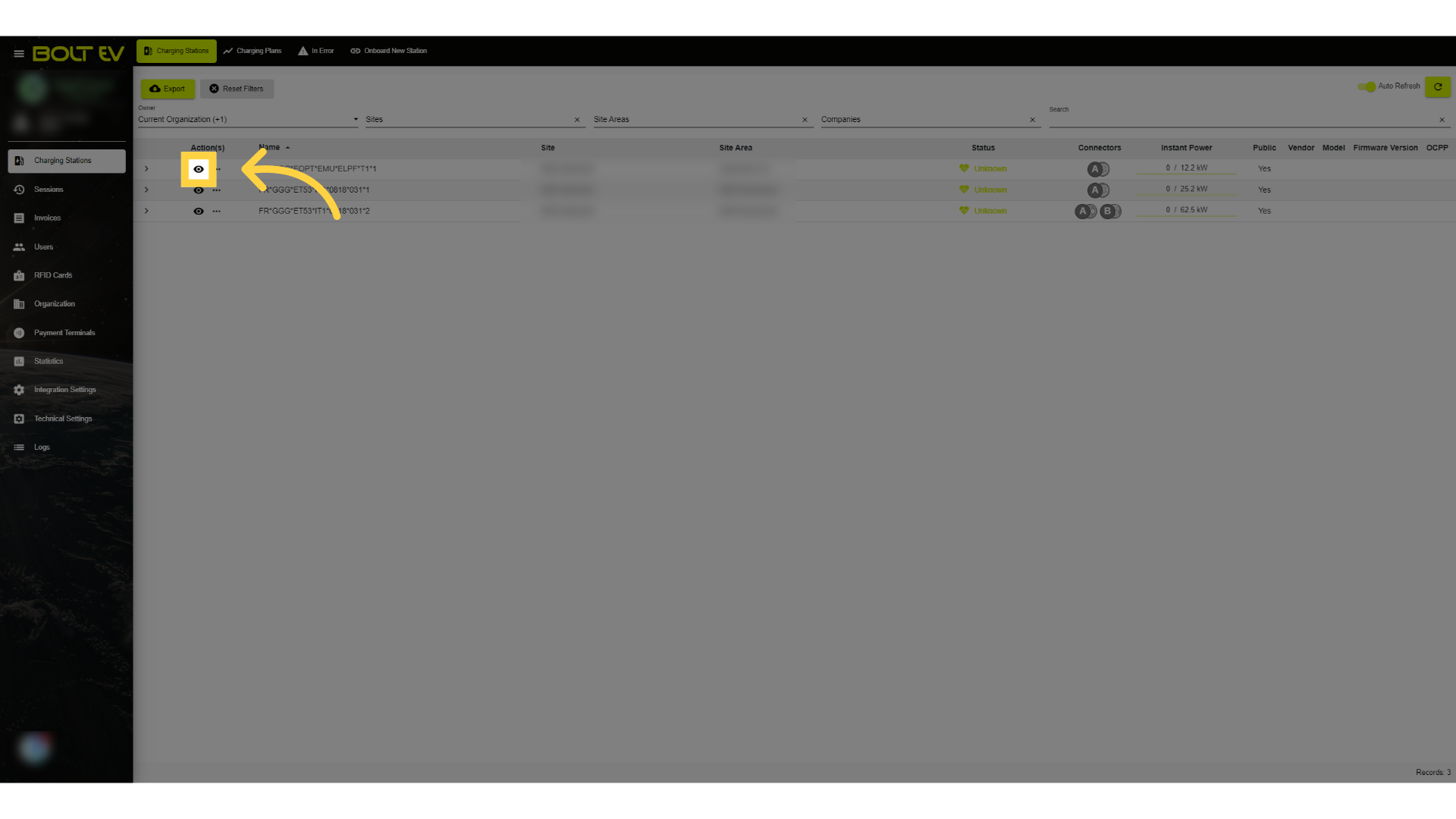
6. More details
Access the view mode to see more details about the charger.
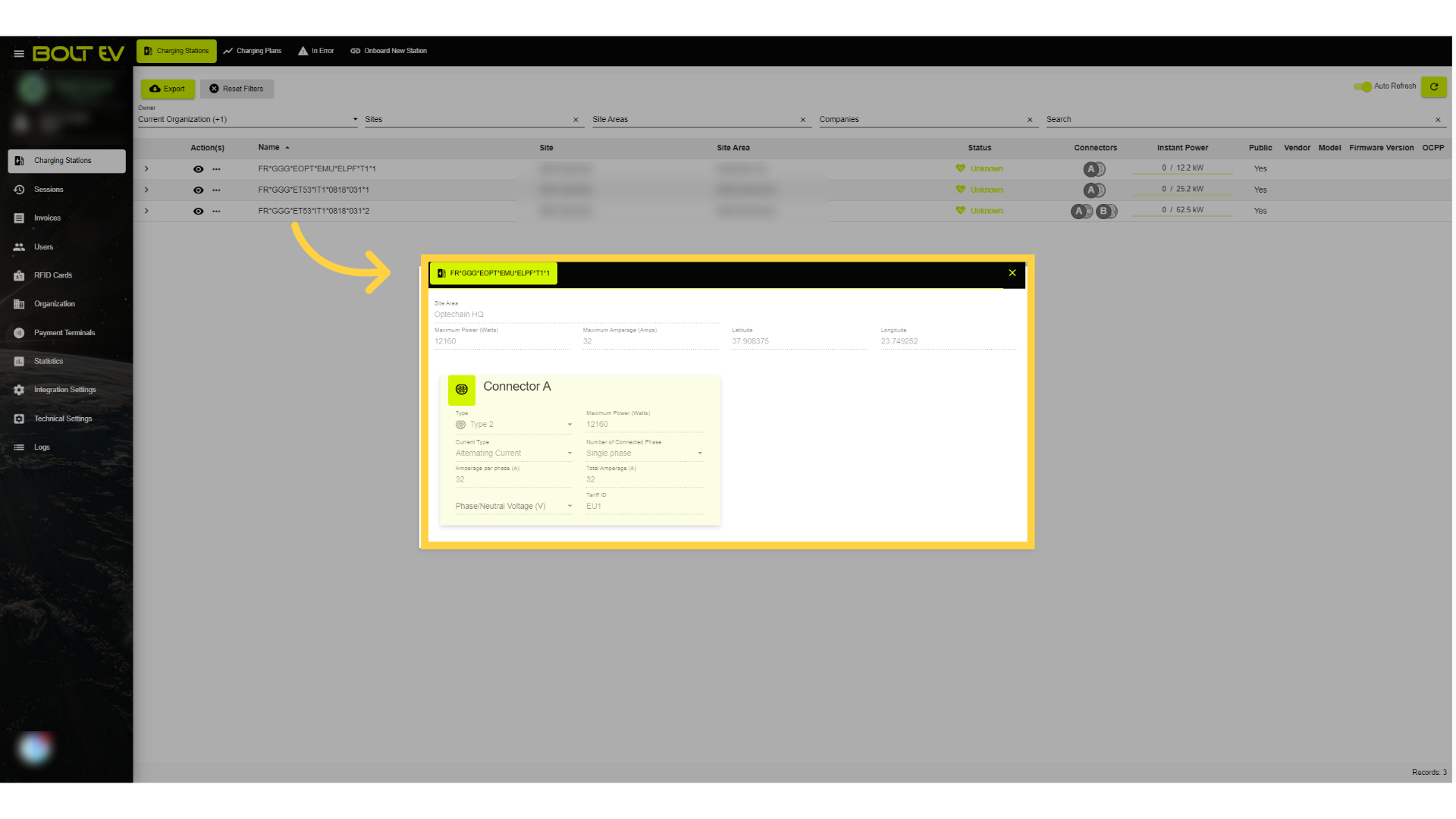
7. Charger settings
From the emerging window, we can see all the settings that have been made on the charger during installation without the ability to edit them.
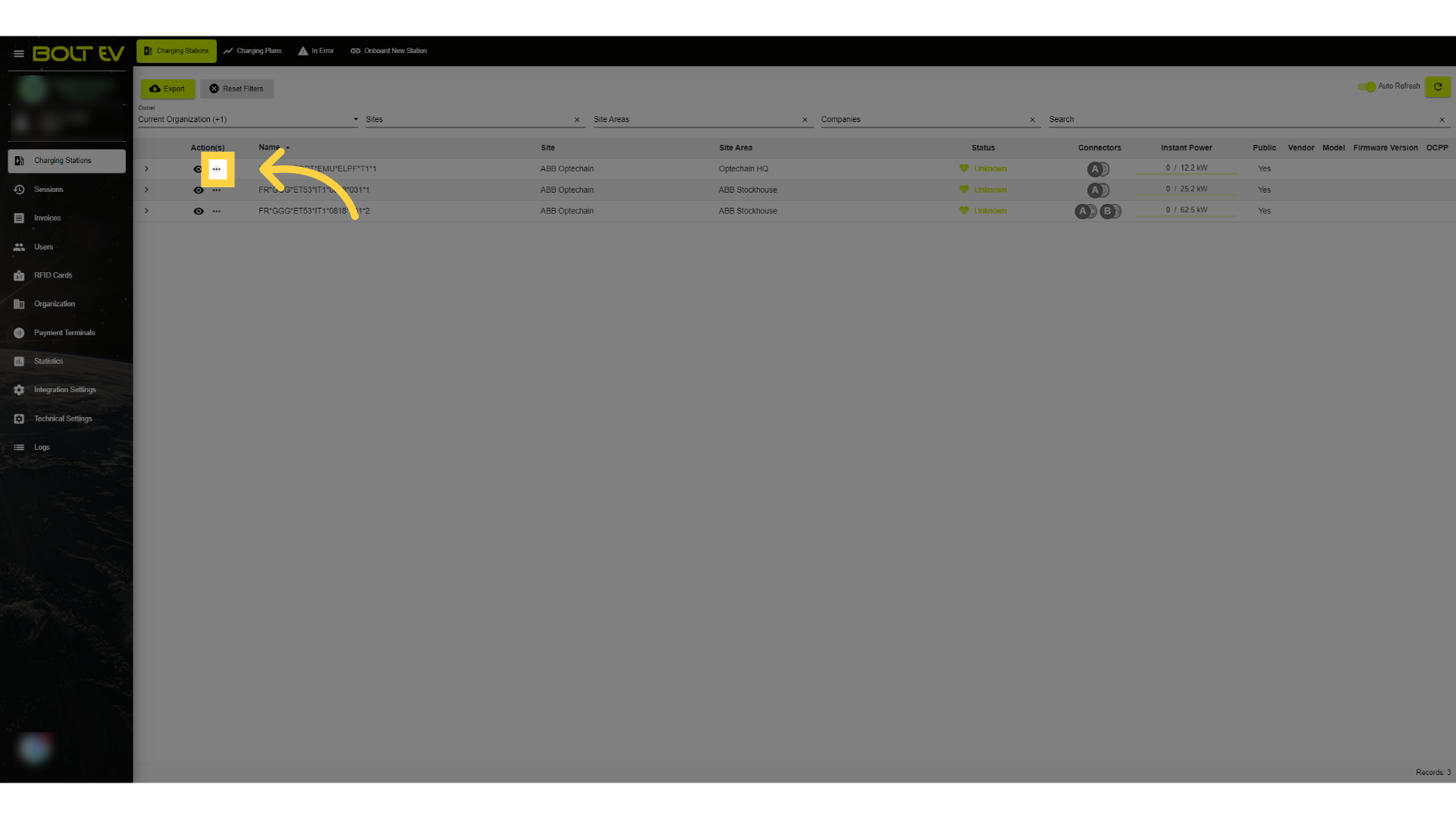
8. Click "More"
By clicking on the three dots, we can browse to either the sessions or the locations of individual chargers.
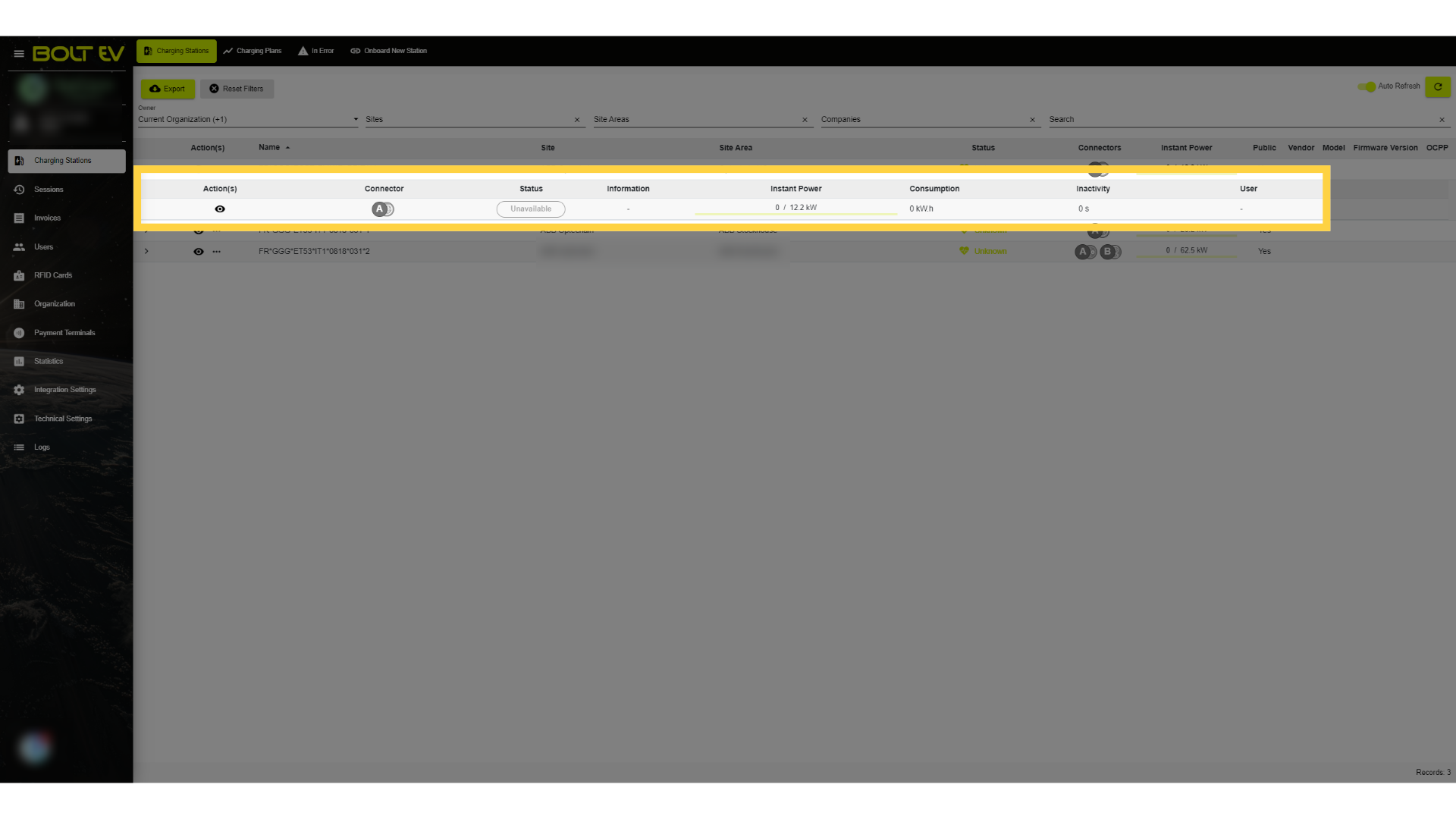
9. Active session details
Finally, if there is an active session, we may view comprehensive information such as power, usage, and the payment terminal being used for charging.
This guide covered essential steps to efficiently navigate the Charging Stations application, allowing users to access specific sections, information, and perform actions seamlessly. Thank you for your attention, I hope to see you on the next one!