
Integration settings
This guide will walk you through the necessary steps to configure Integration Settings in Bolt EV platform.

Kostas Gardikiotis
Last Update 2 yıl önce
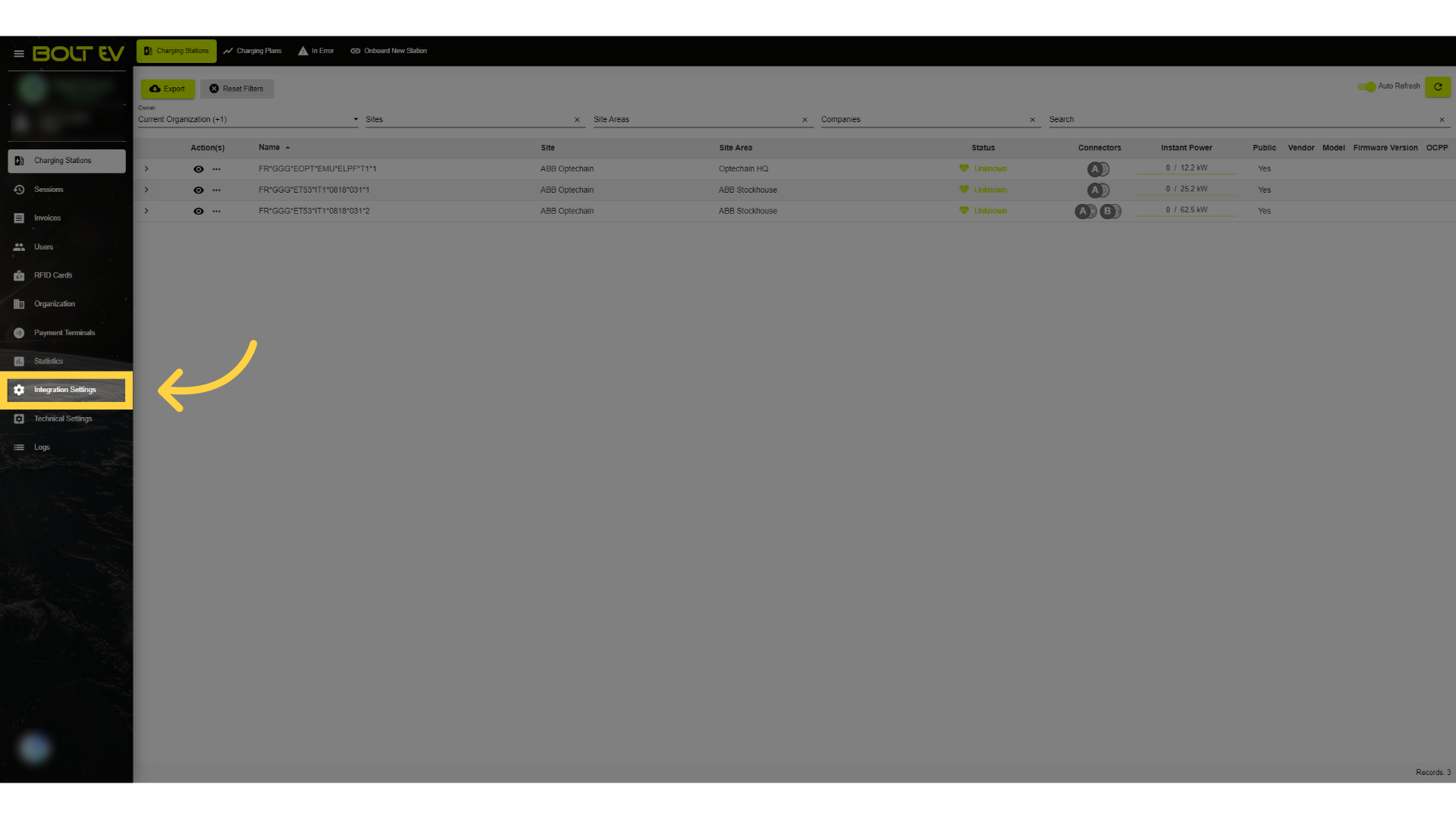
1. Click "Integration Settings"
Click on the Integration Settings field from the main menu in the left column of the main page.
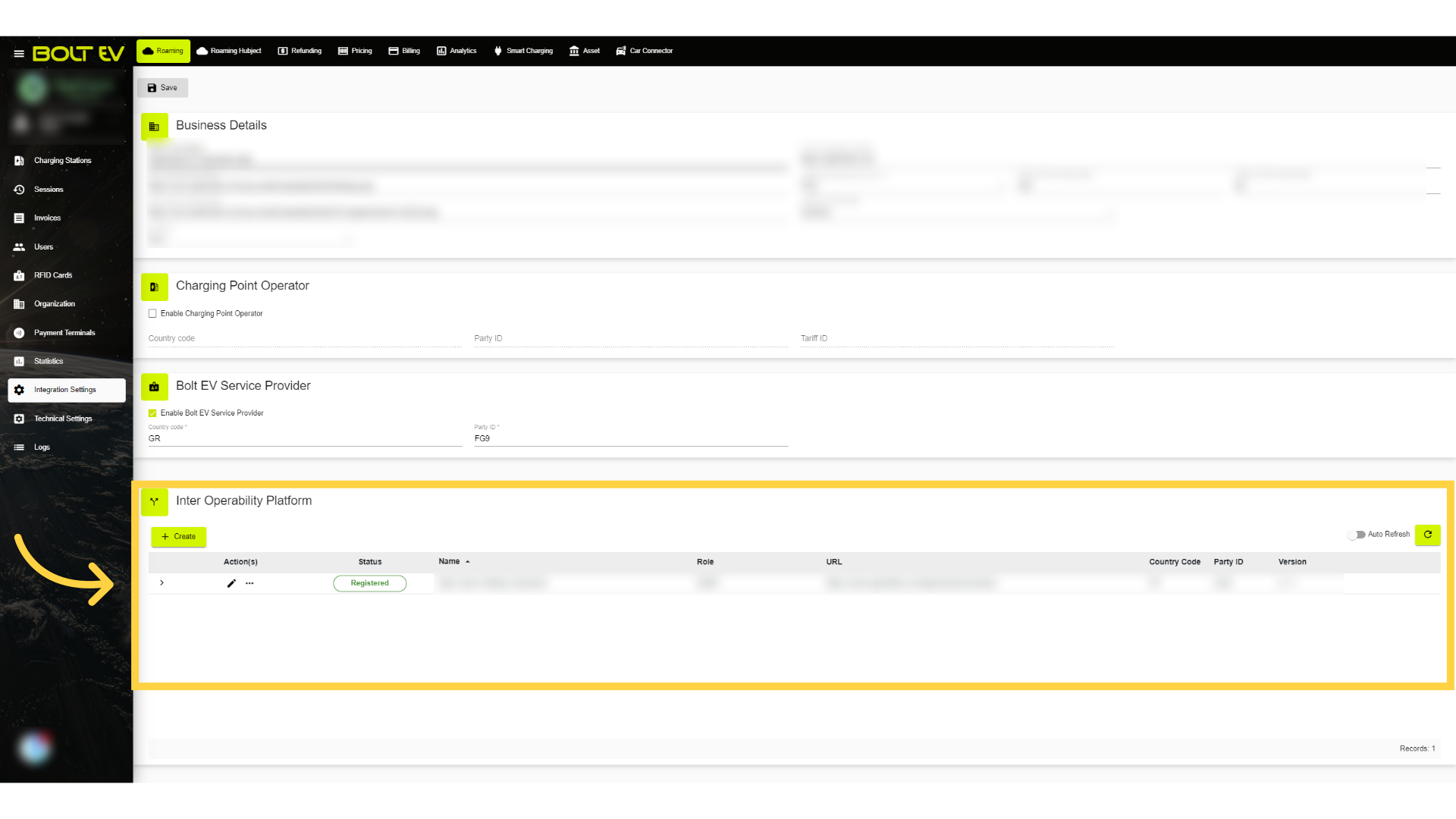
2. Inter Operability Platform
In this specific field, we can see if there are already registered settings as well as create new ones.
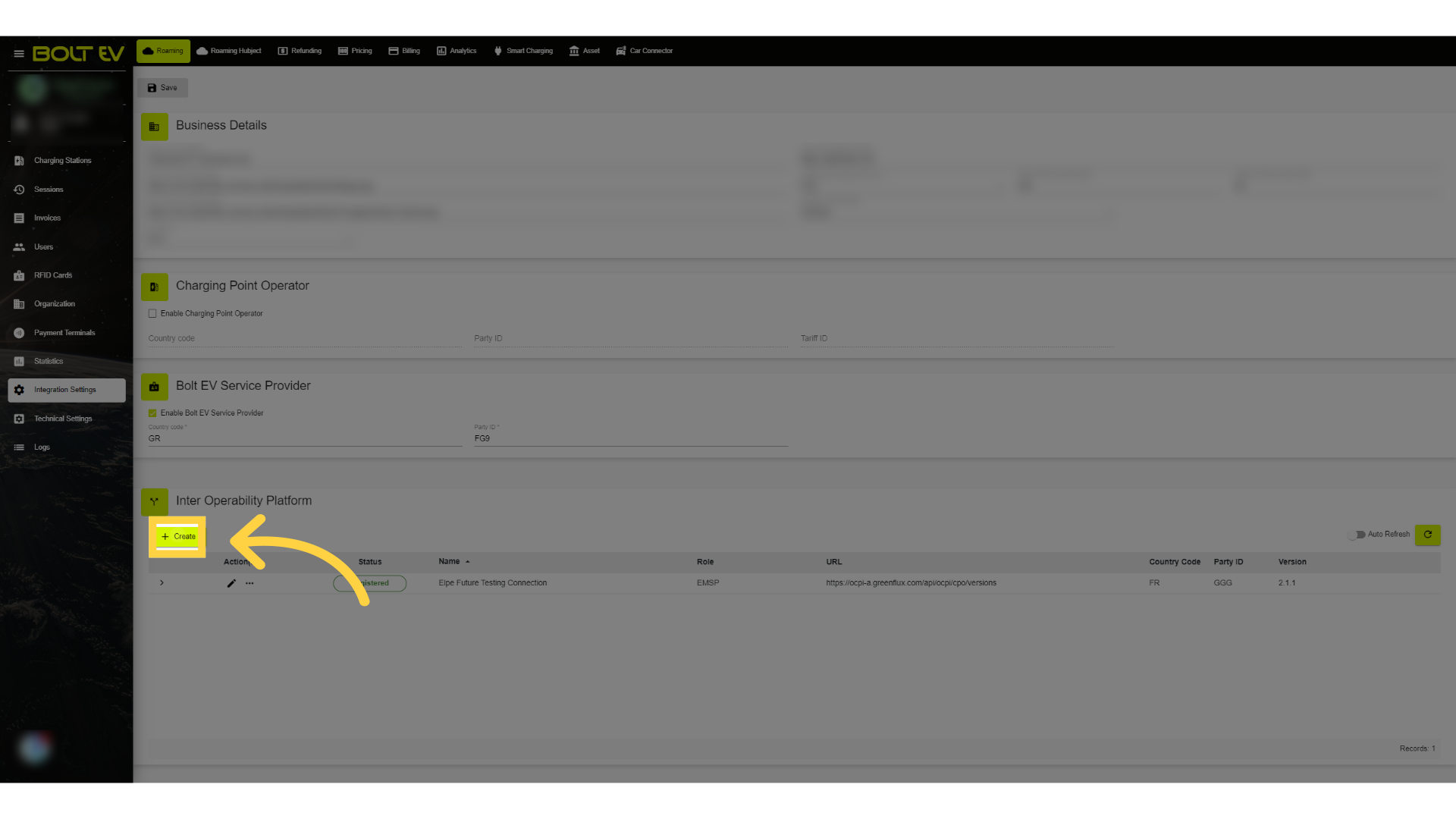
3. Click "Create"
Click on the Create button.
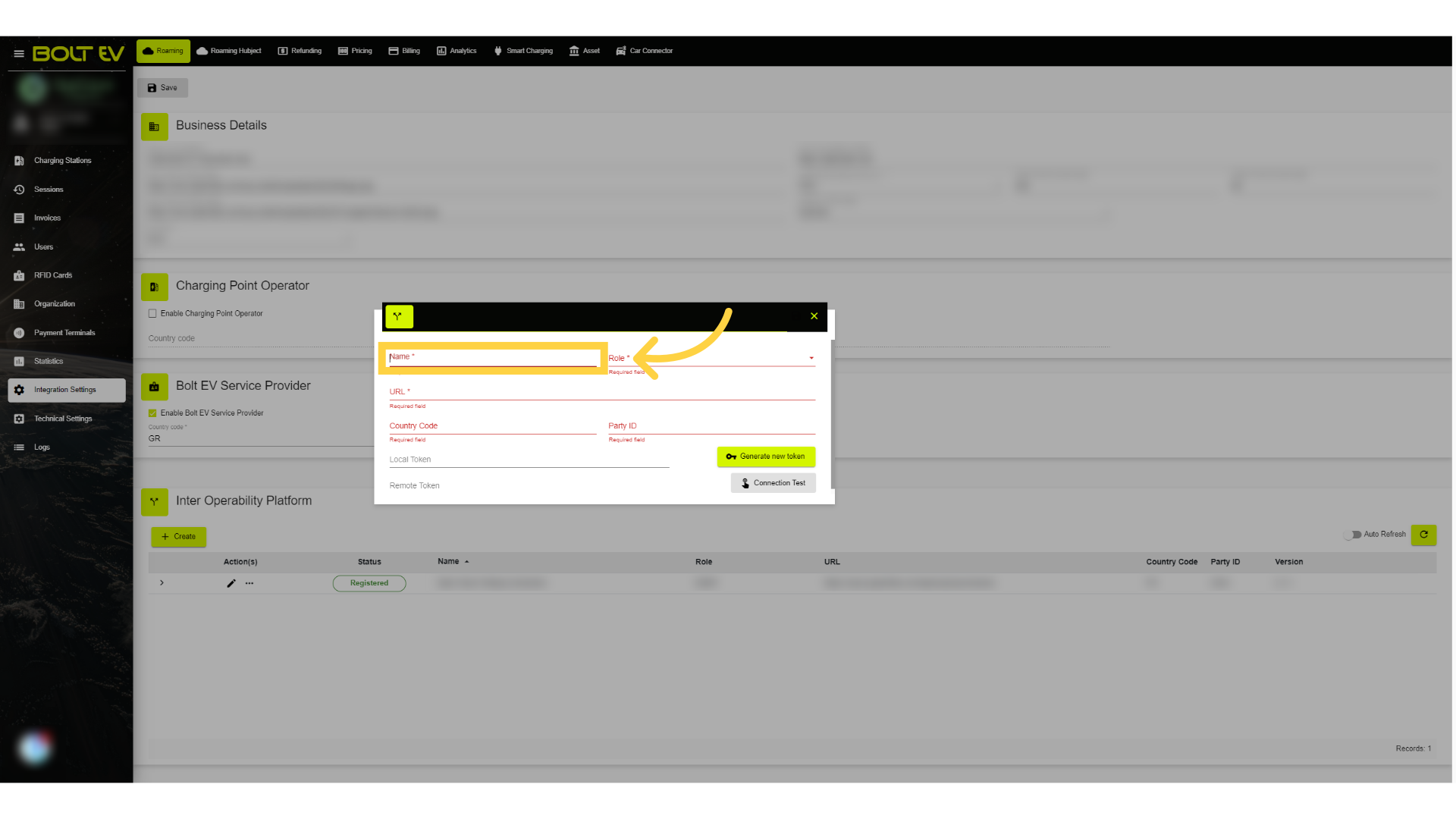
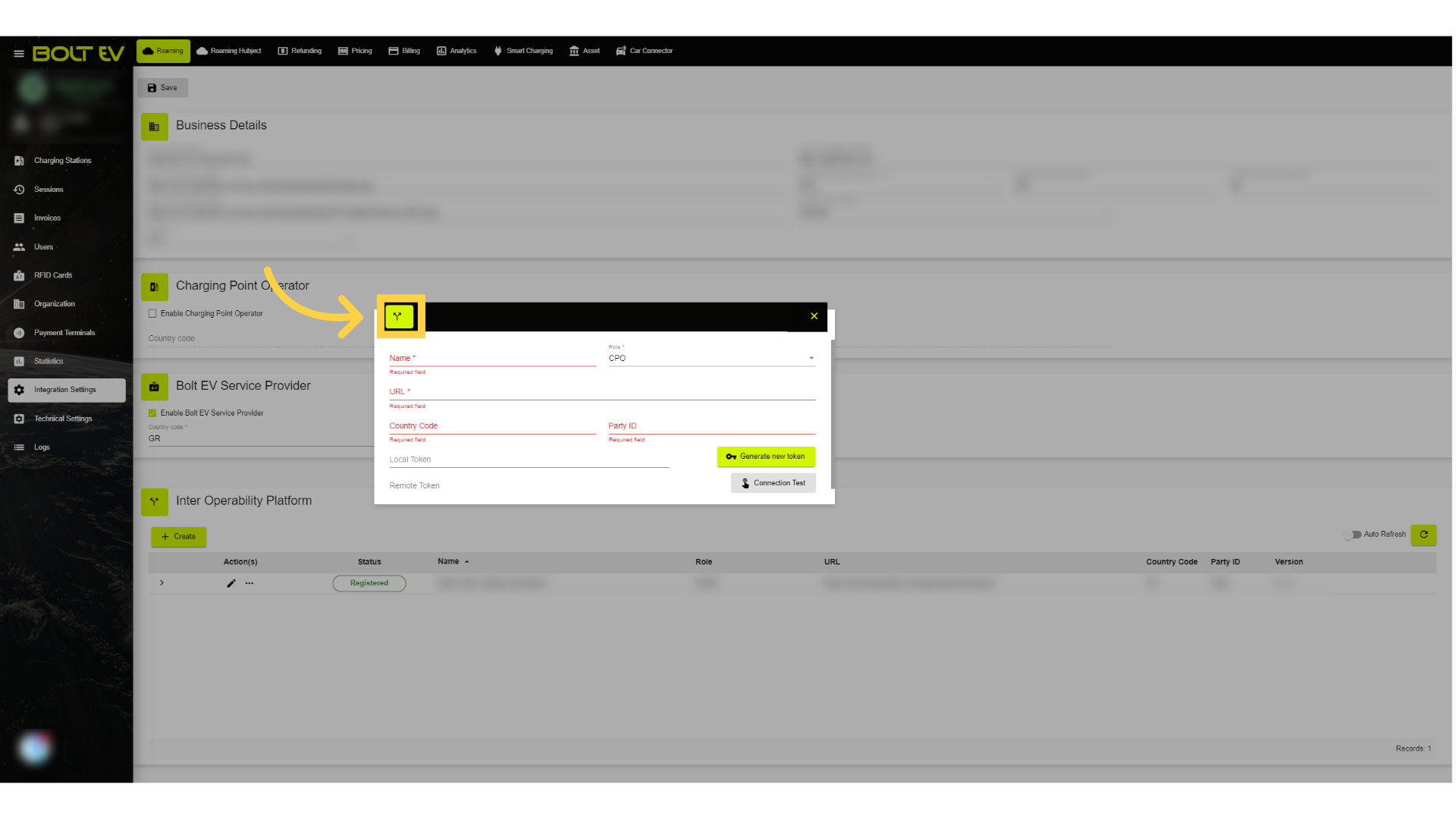
4. Enter "Name"
We initially enter the name we desire for this specific connection.
5. Click "Role"
Then we click on the field "Role."
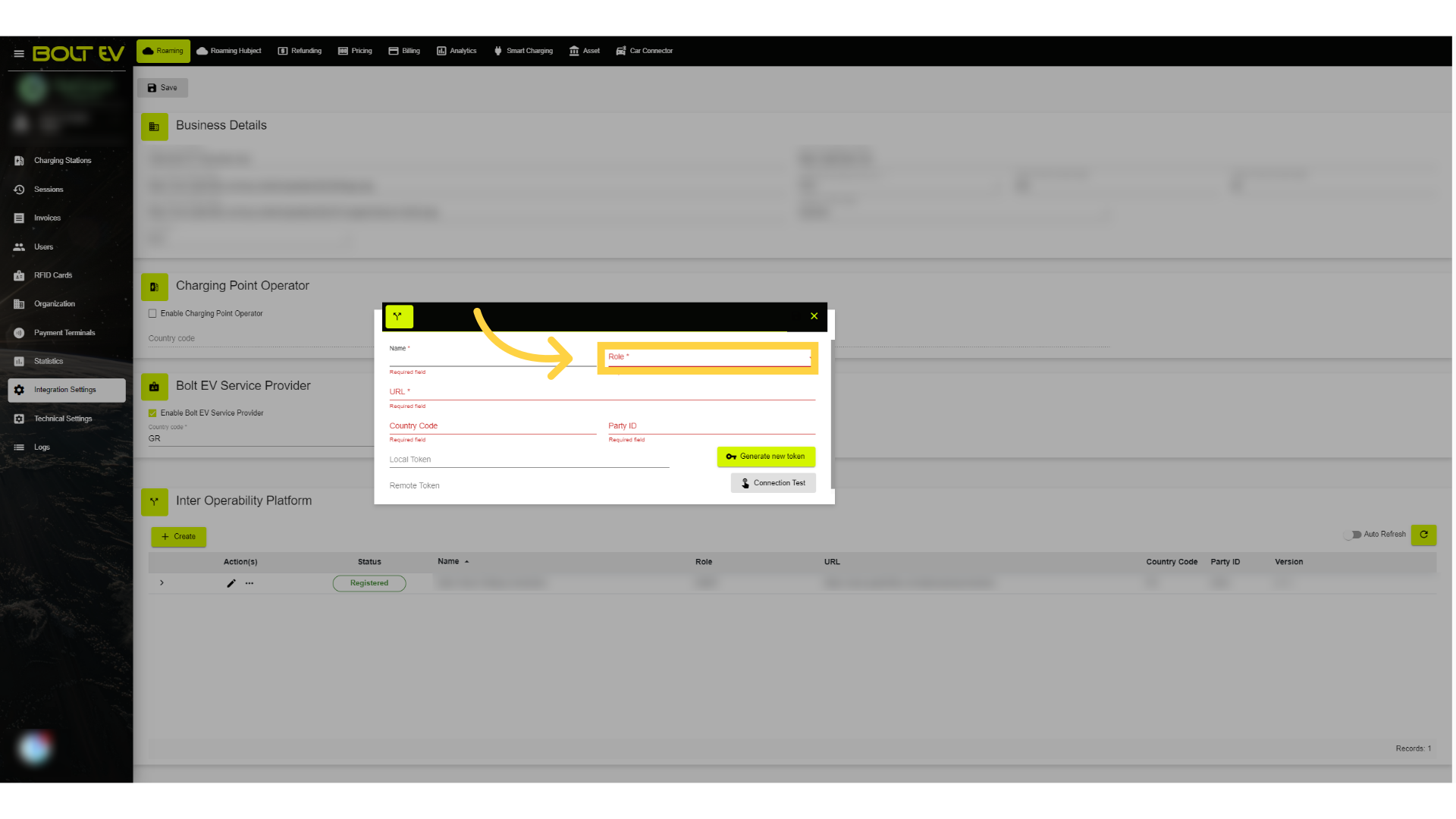
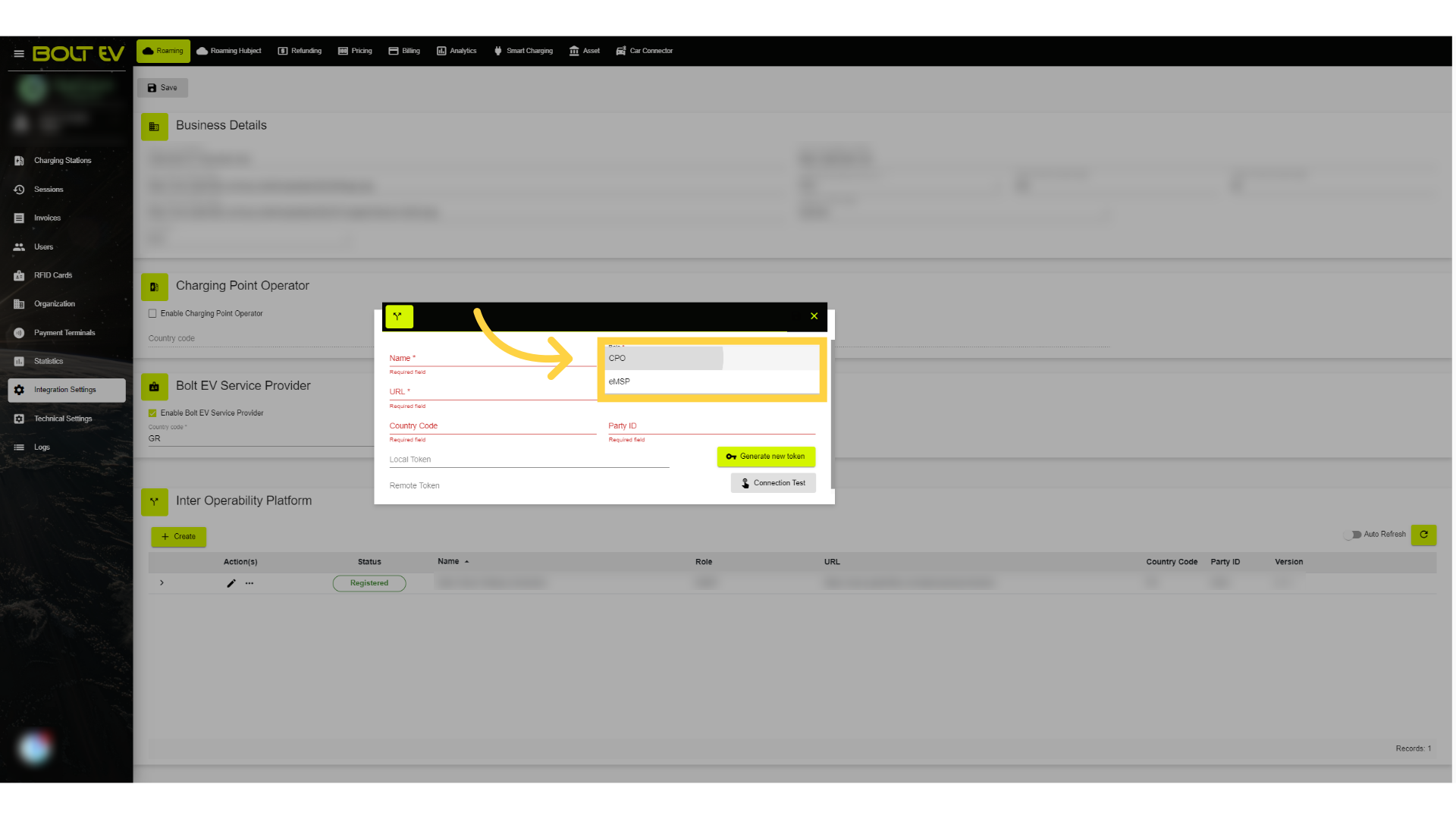
6. Select the preferred Role
Next, we select the eMSP option as this is the role of the BOLT EV platform.
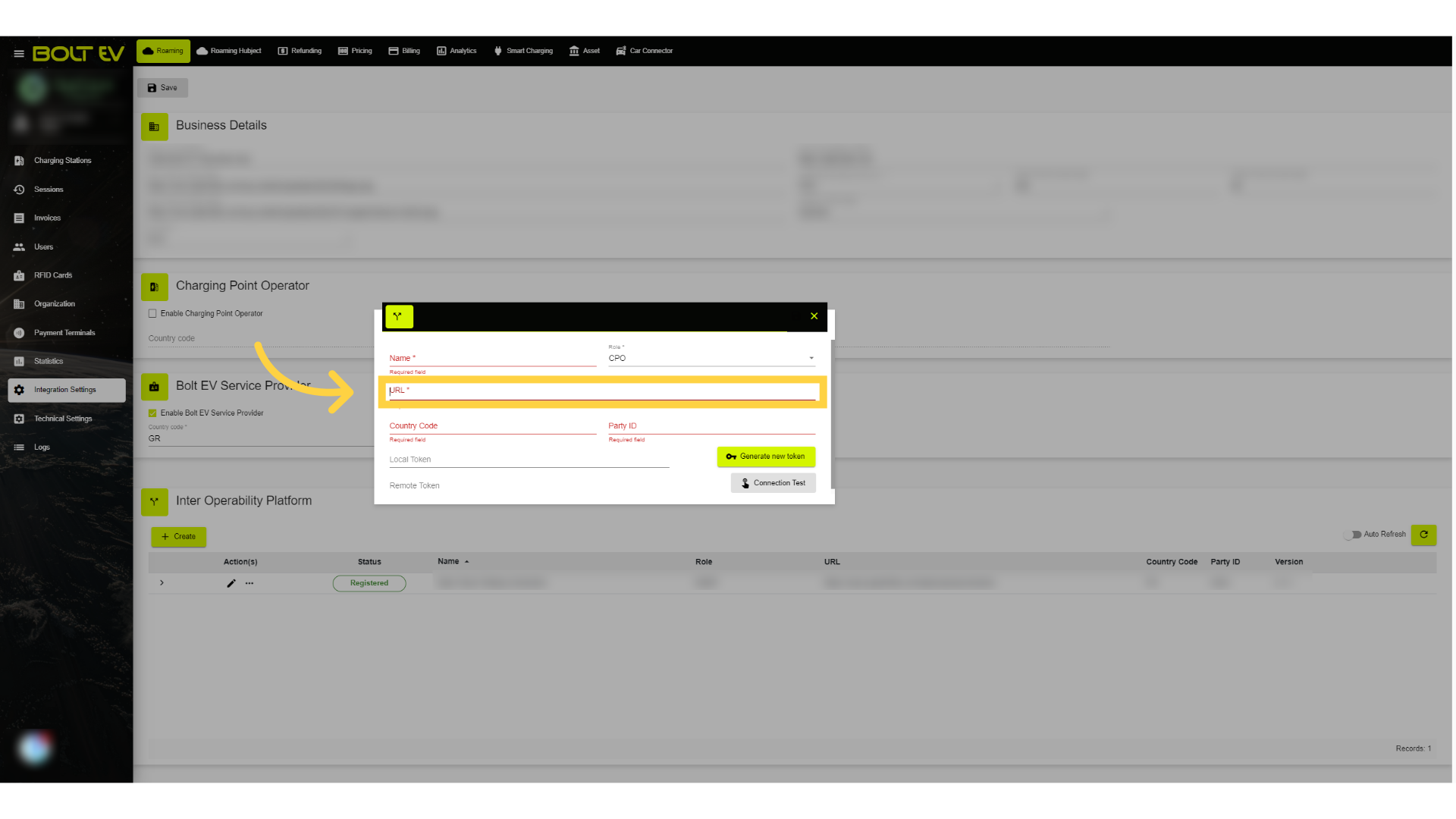
7. Enter the URL
We are entering the URL, which should be provided to us by the company that has taken on the role of CPO.
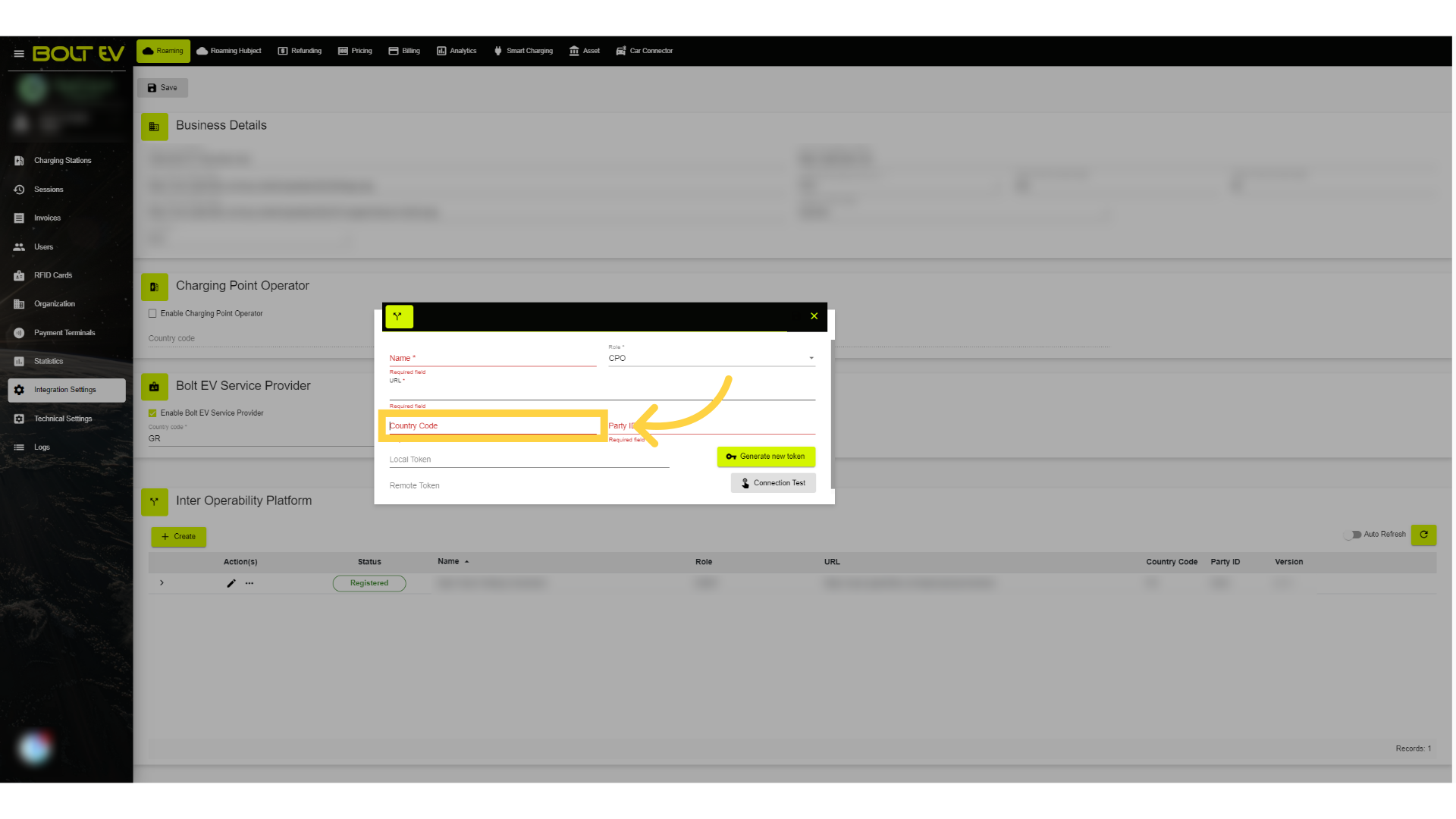
8. Enter "Country Code"
We also register the country code provided to us by the company that has taken on the role of CPO.
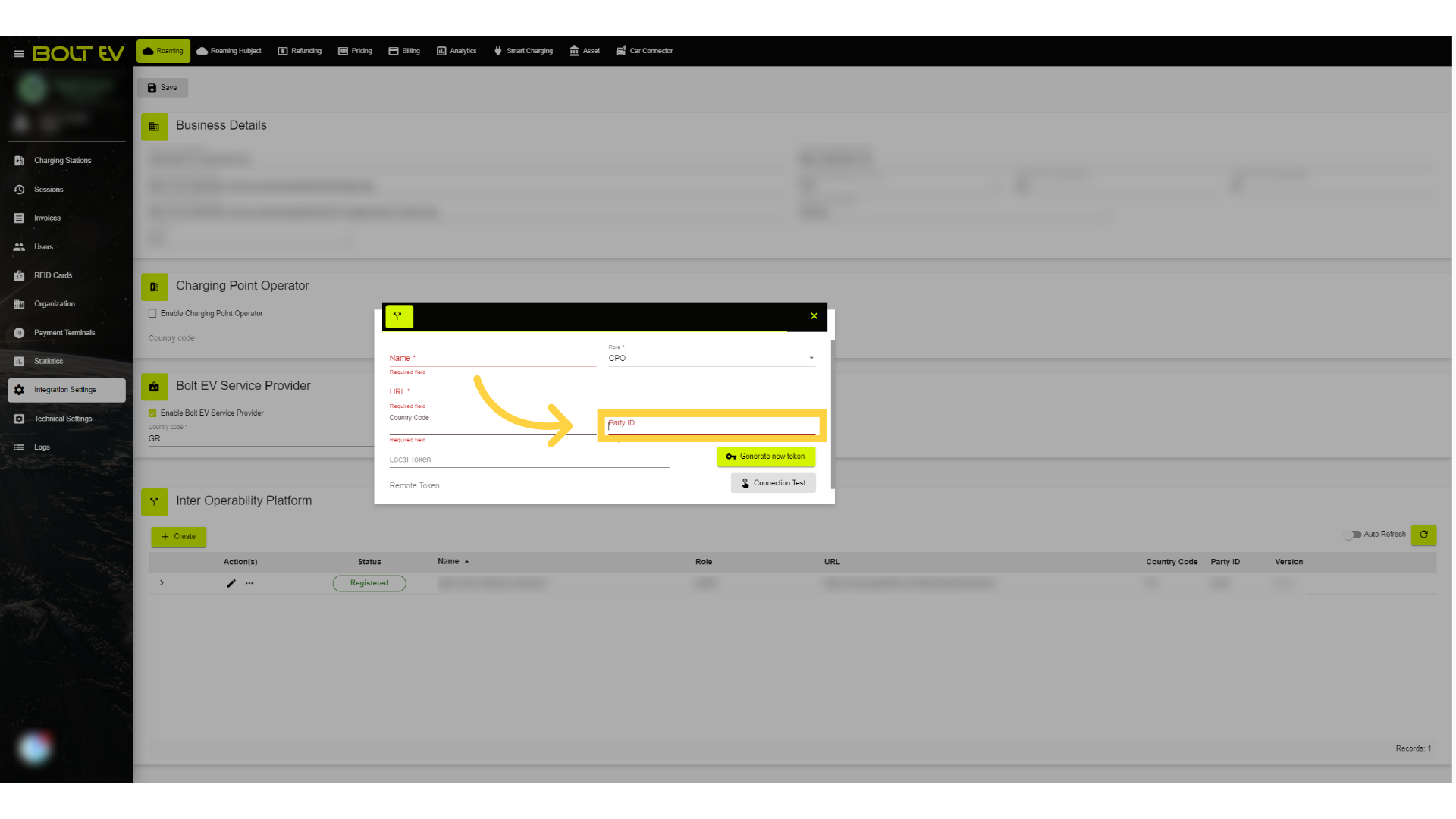
9. Submit "Party ID"
Enter the Party ID details.
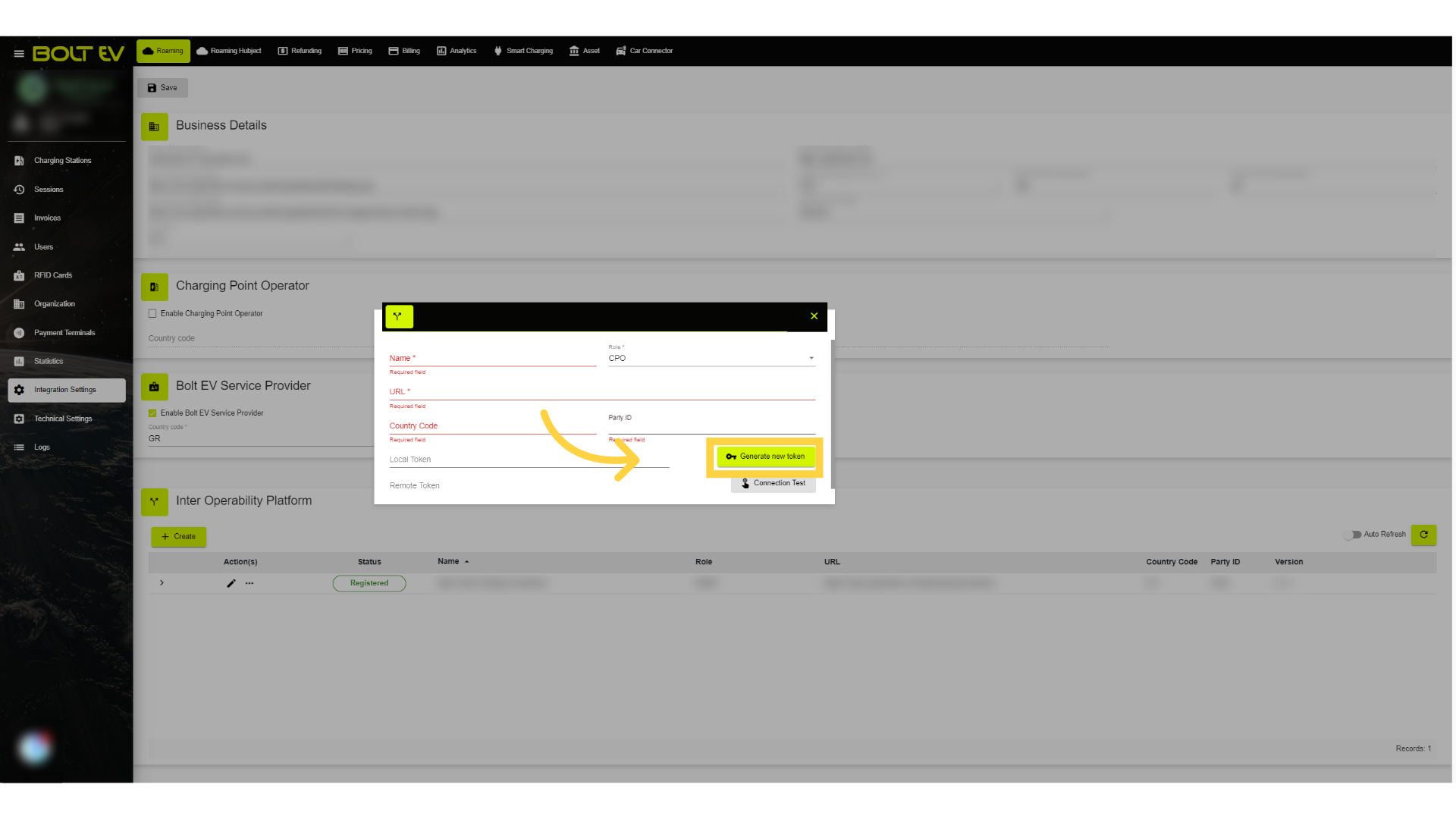
10. Generate new token
Generate a new token for VPN access.
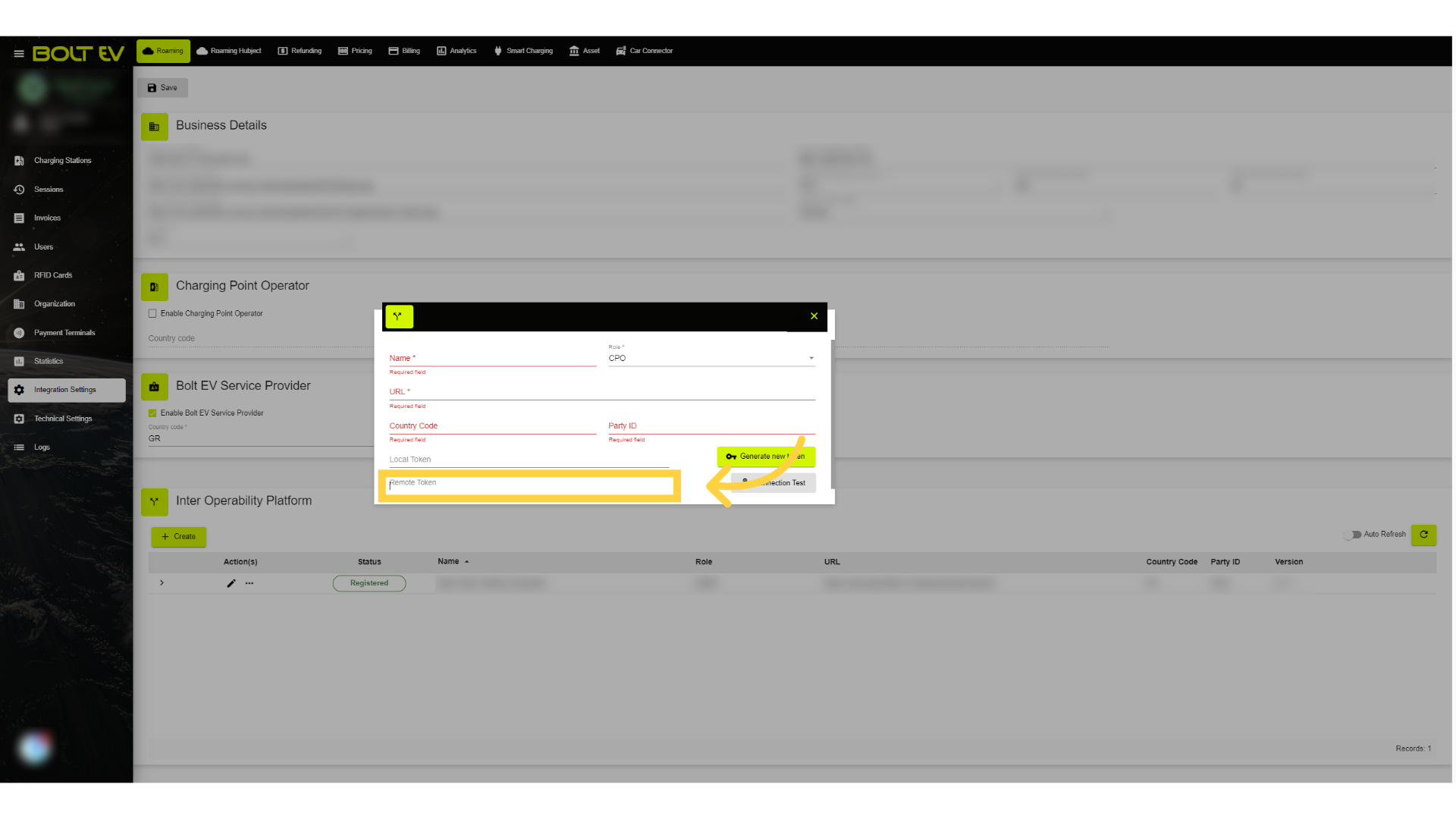
11. Submit Remote Token
Finally, in the field "Remote Token," we enter the Token provided to us by the CPO.
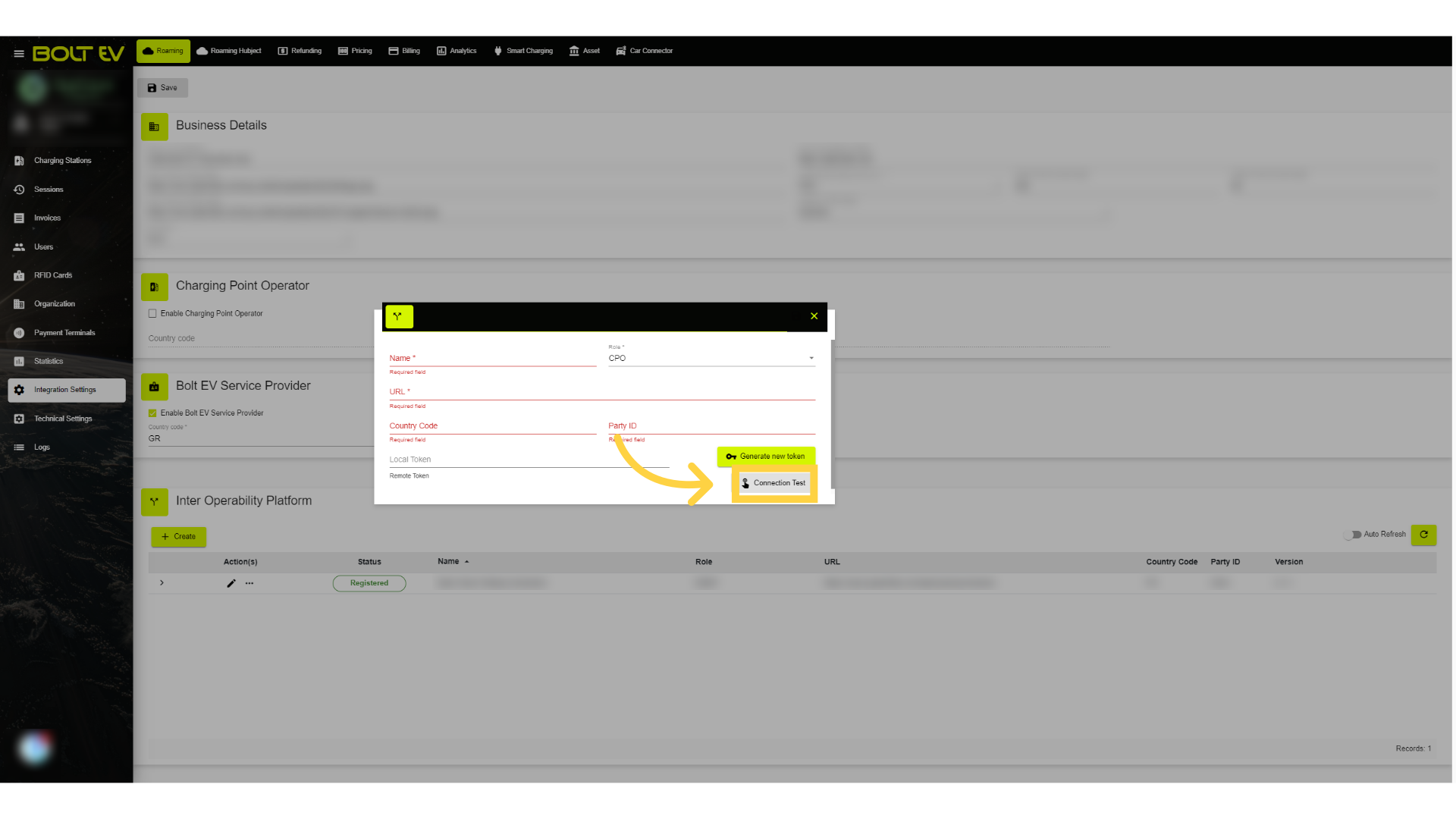
12. Connection Check
We check the connectivity with the two platforms by pressing the "Connection Check" button.
13. Save settings
Once the check is successfully completed,click the save button in the top left corner of the window.
This guide thoroughly covered the steps necessary to achieve the integration of the CPO system with the BOLT EV platform. Thank you for your attention, I hope to see you on the next one!