
Invoices tab
This guide will walk you through the necessary steps to view the Invoices tab and the Transfers tab of the Bolt EV platform.

Aggelos Moisakis
Last Update hace 2 años
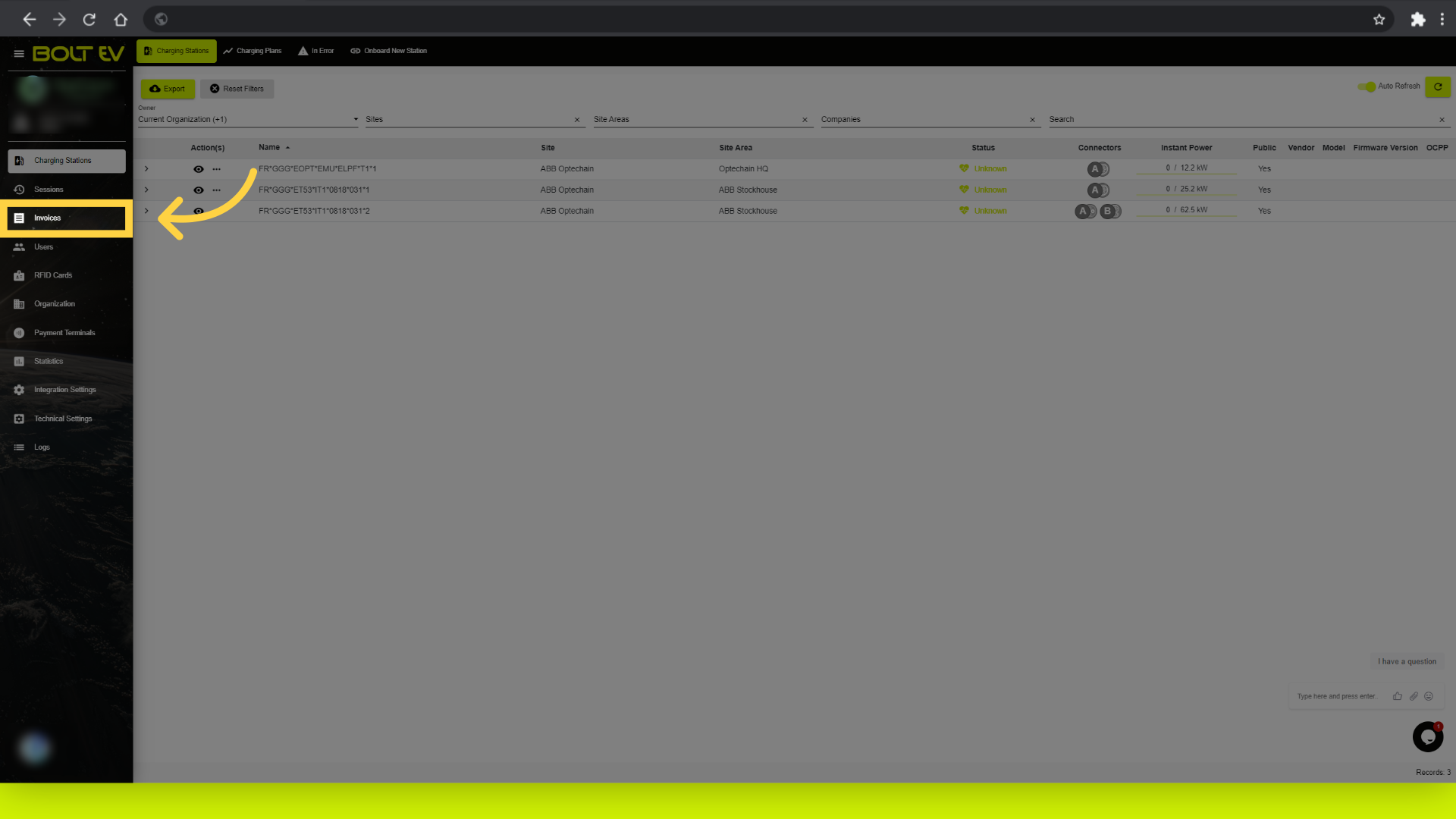
1. Click "Invoices"
Access the invoices section by cklicking on the left bar.
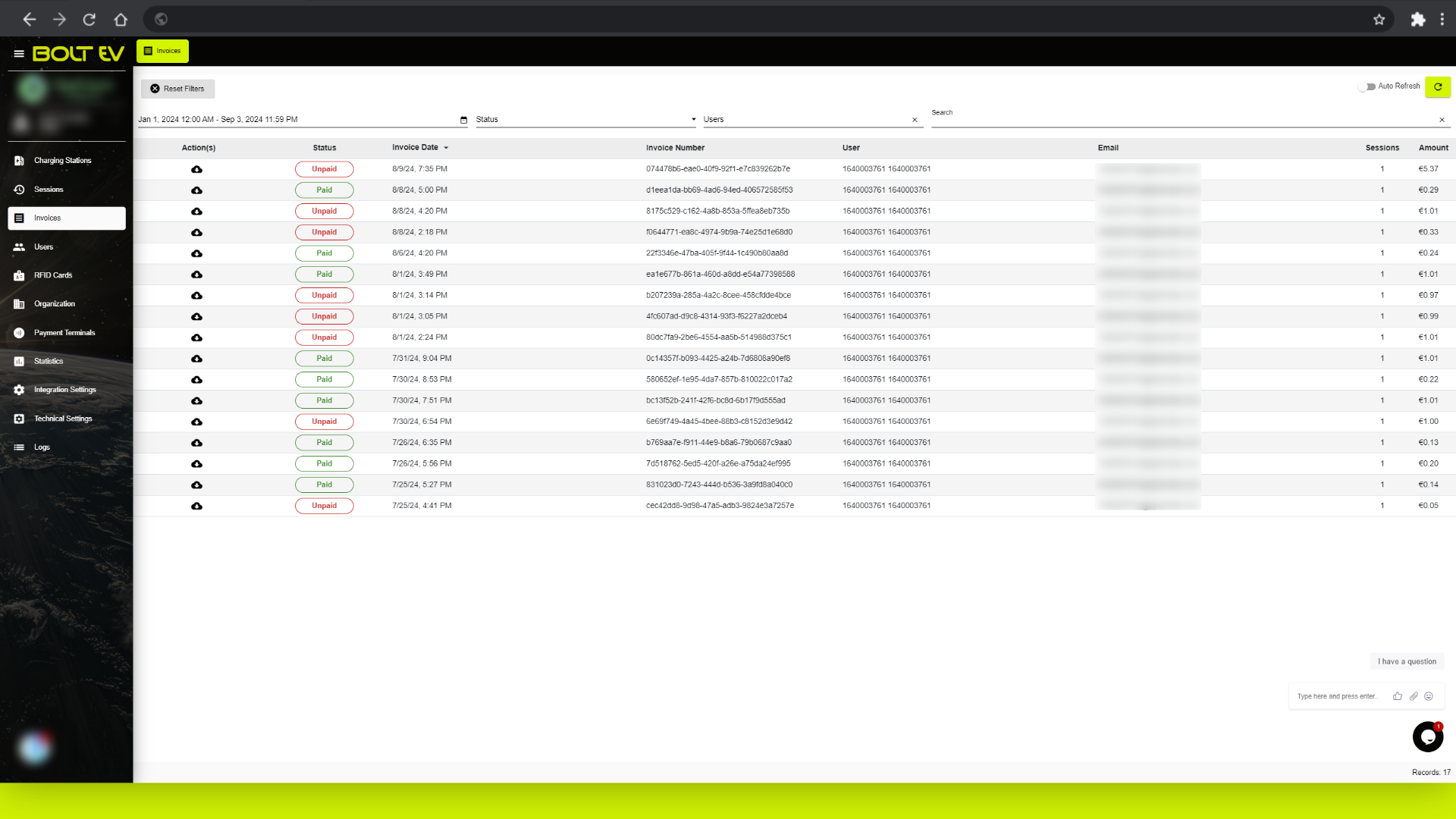
2. Invoices list
Here you can see the list of all the previous invoices.
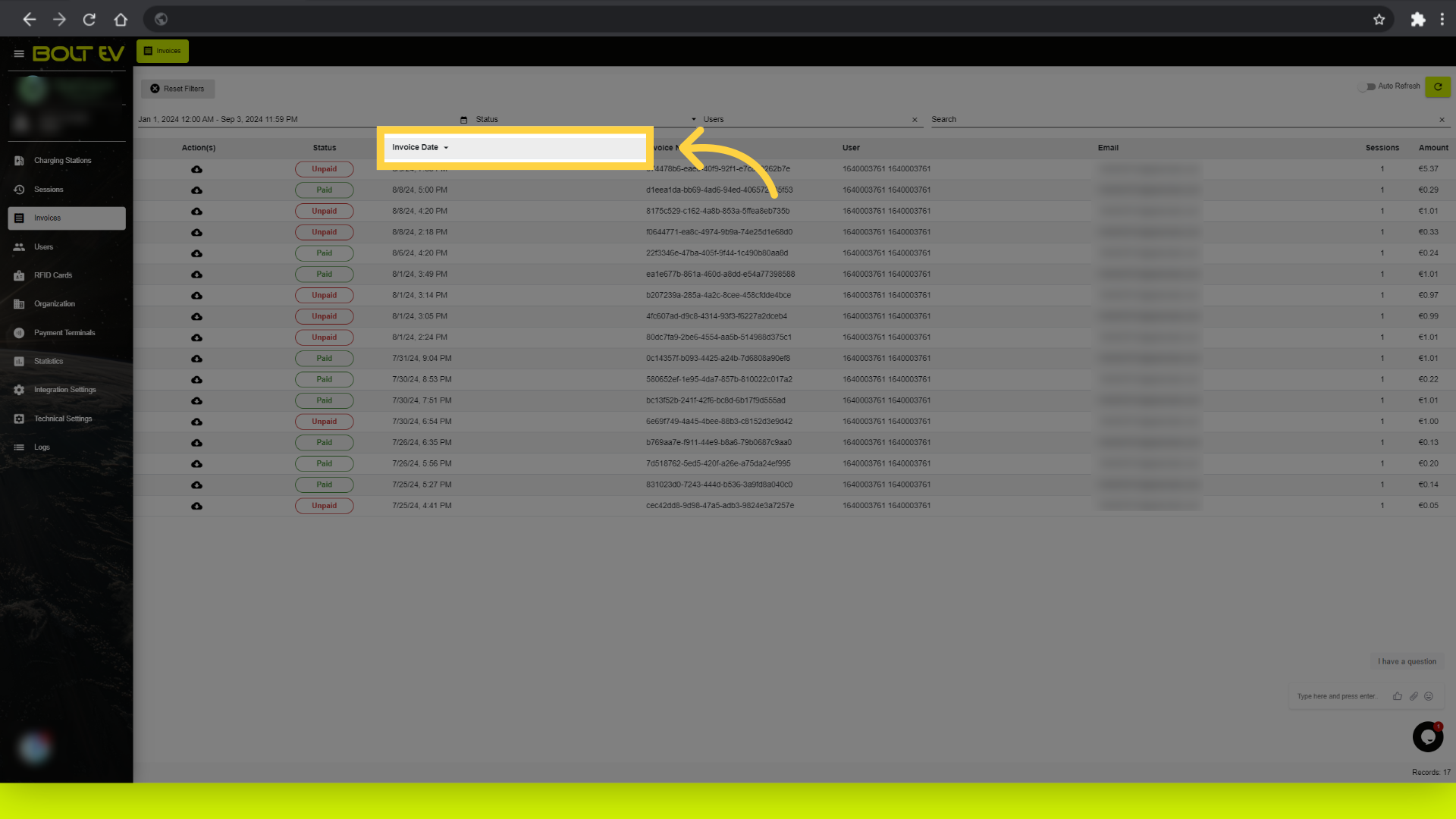
3. "Invoice Date"
Choose the date range for the invoice.
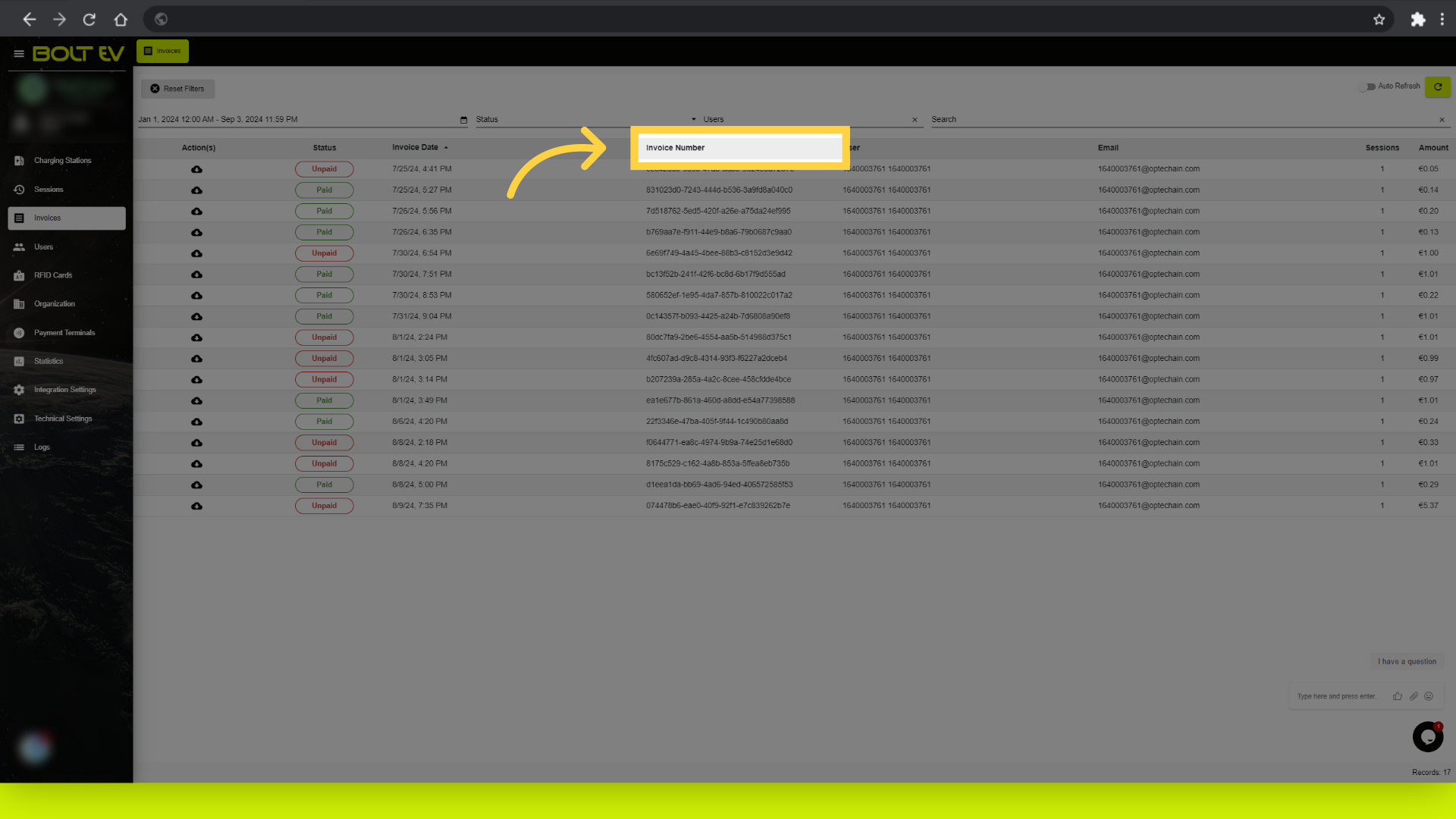
4. "Invoice Number"
View the details of the invoice number.
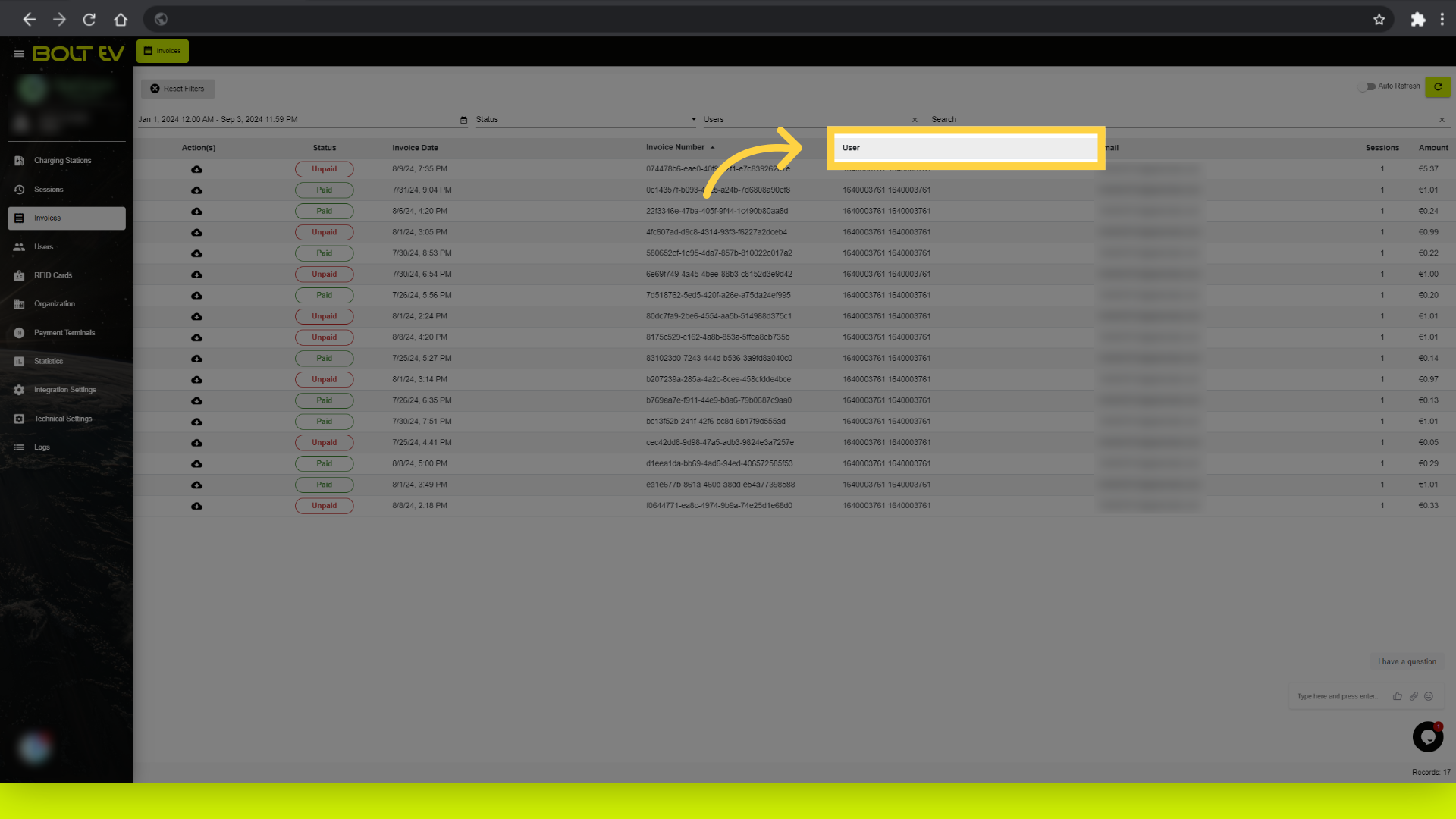
5. "User"
Access information about the user associated with the invoice.
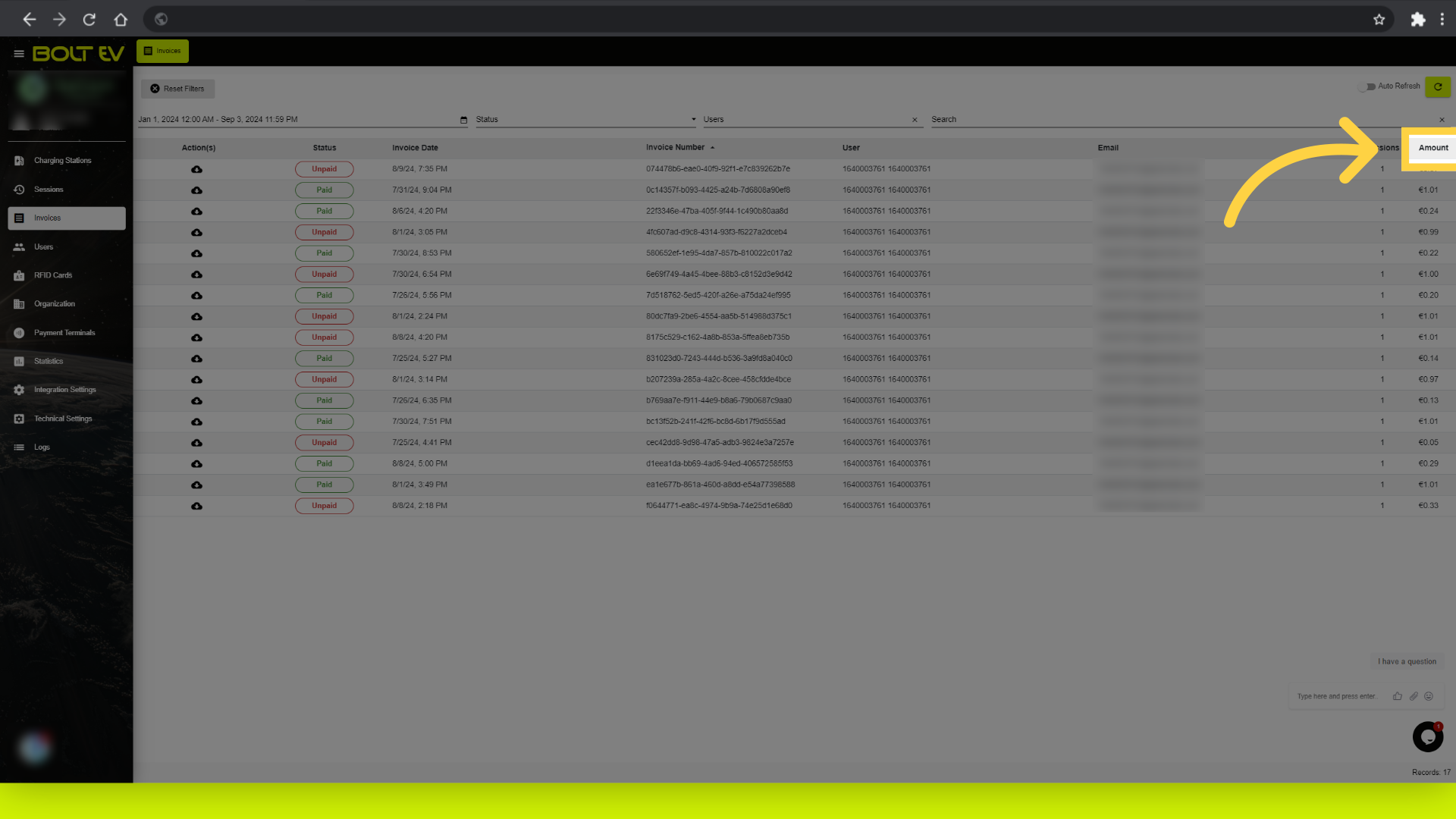
6. "Amount"
Check the amount on the invoice.
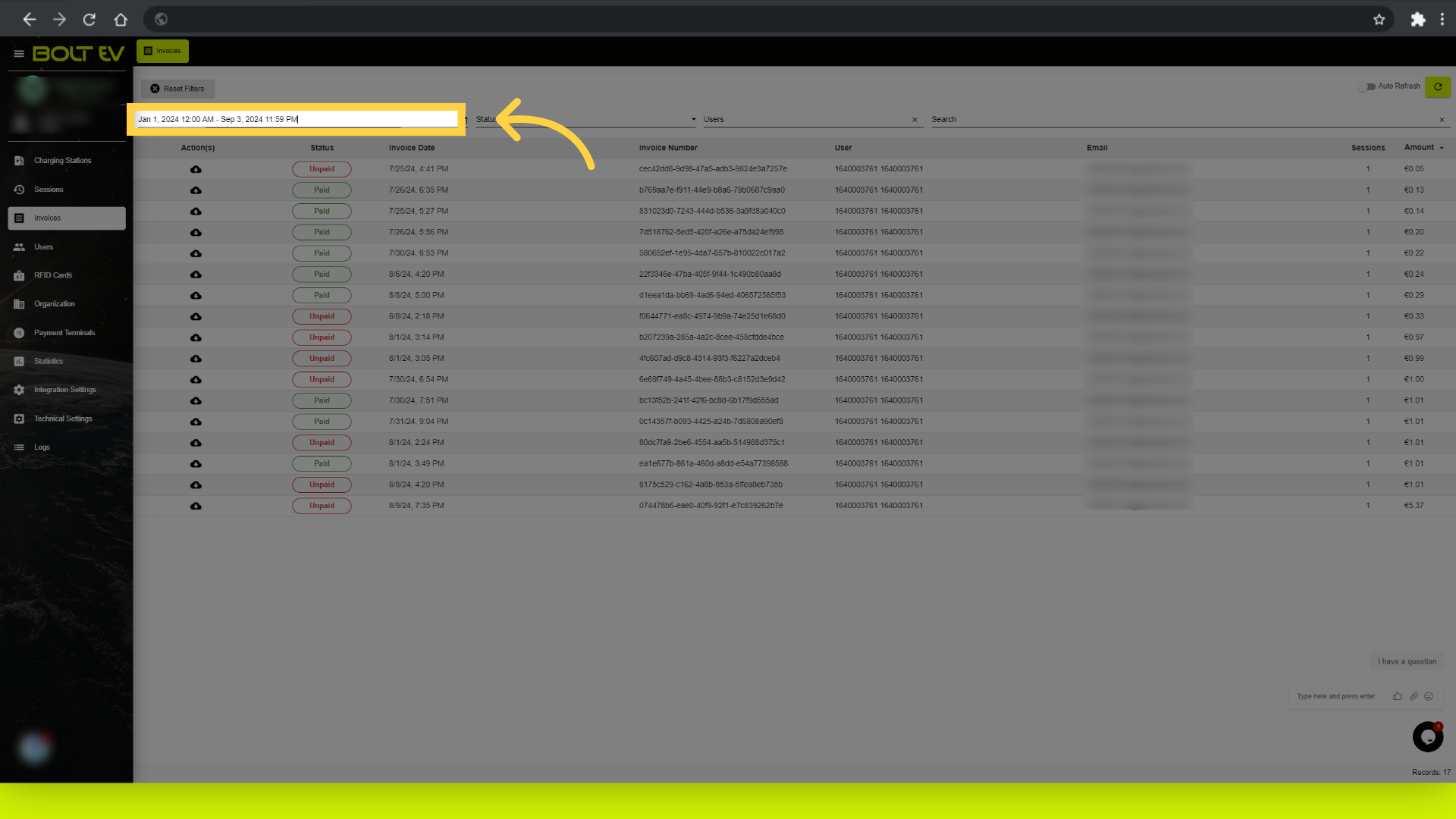
7. Search by date
Select a specific time frame for the invoice.
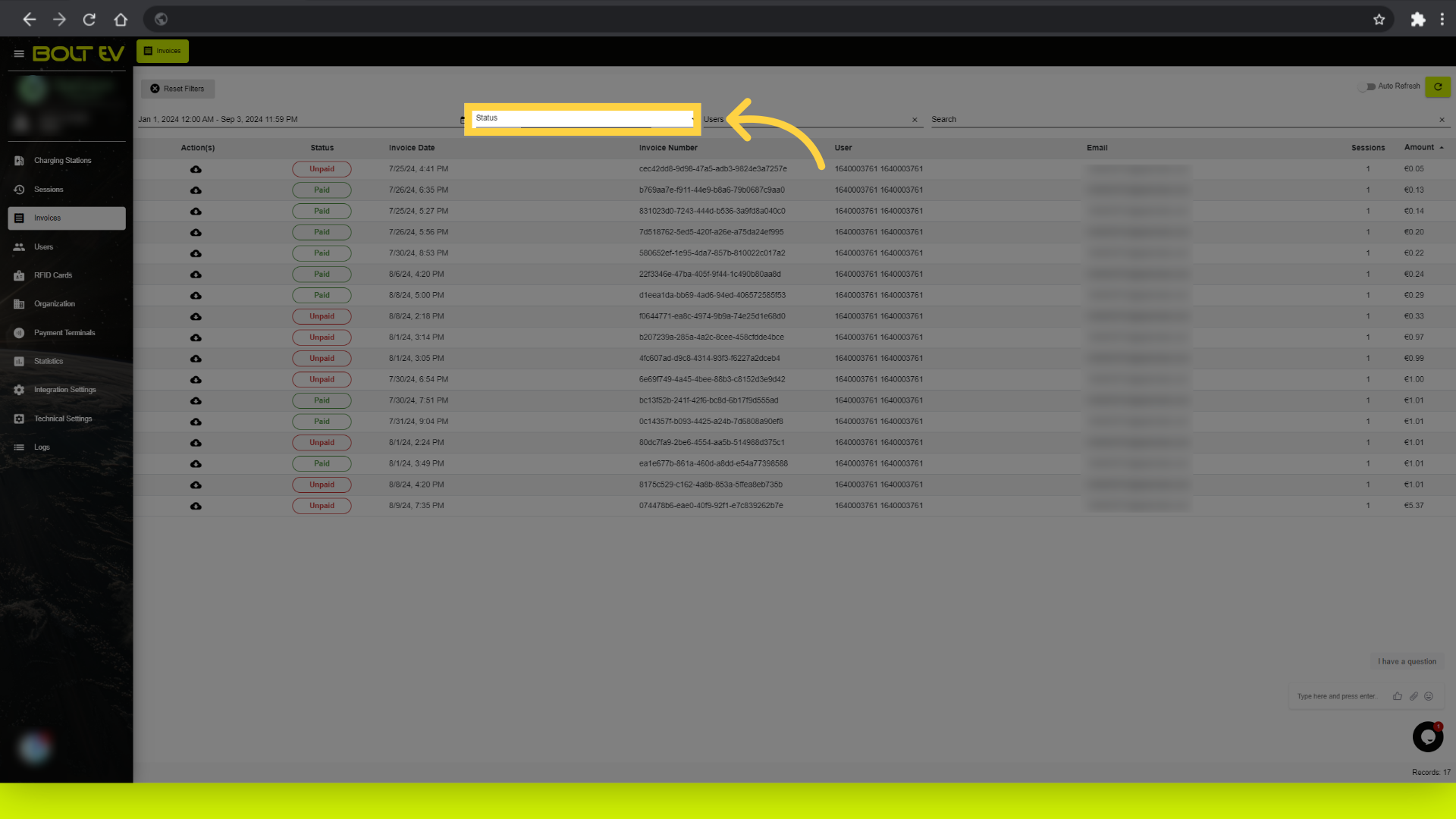
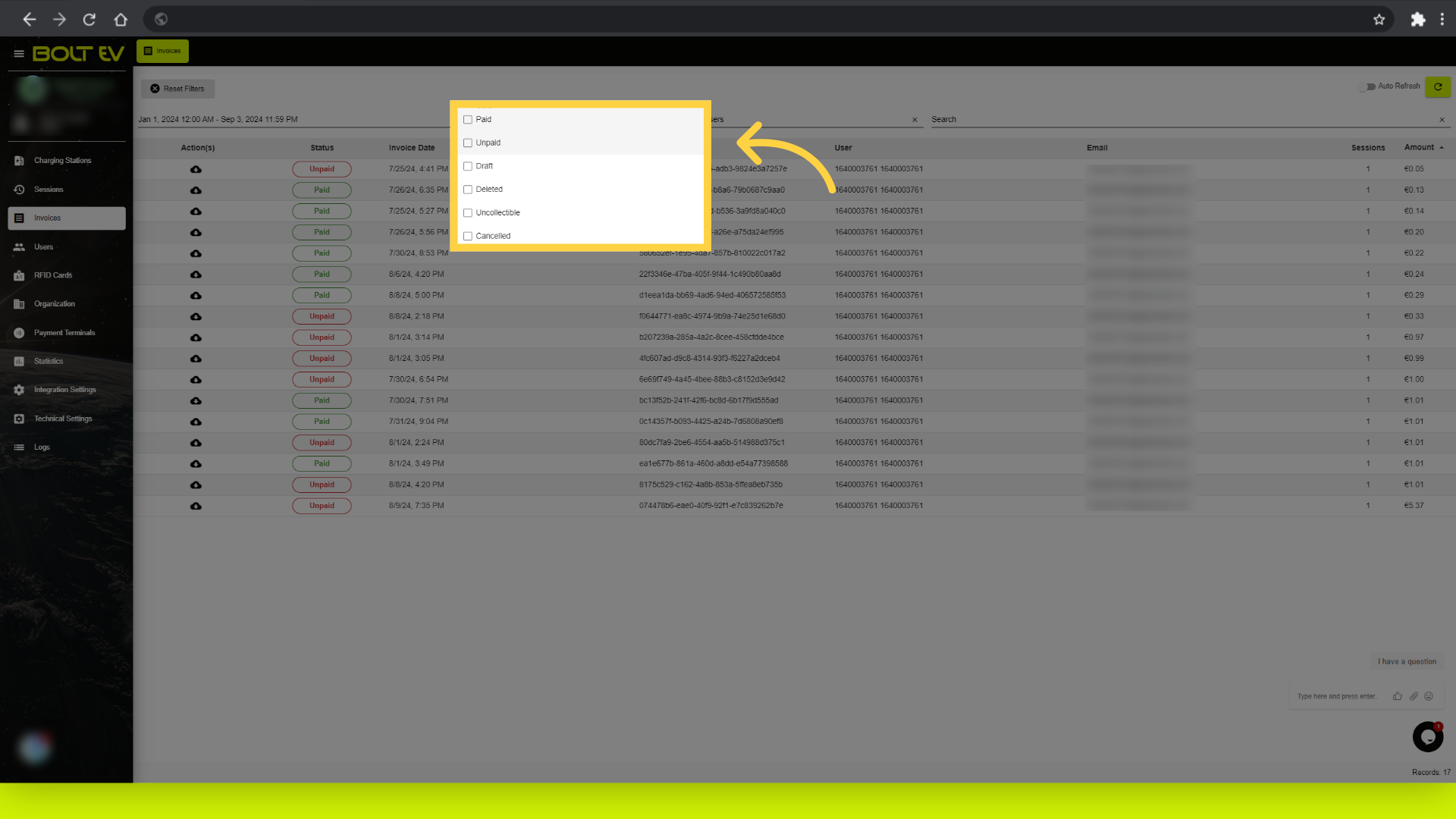
8. Click "Status"
Filter the results by selecting the status of each invoice.
9. Select status
Select the status option that you prefer.
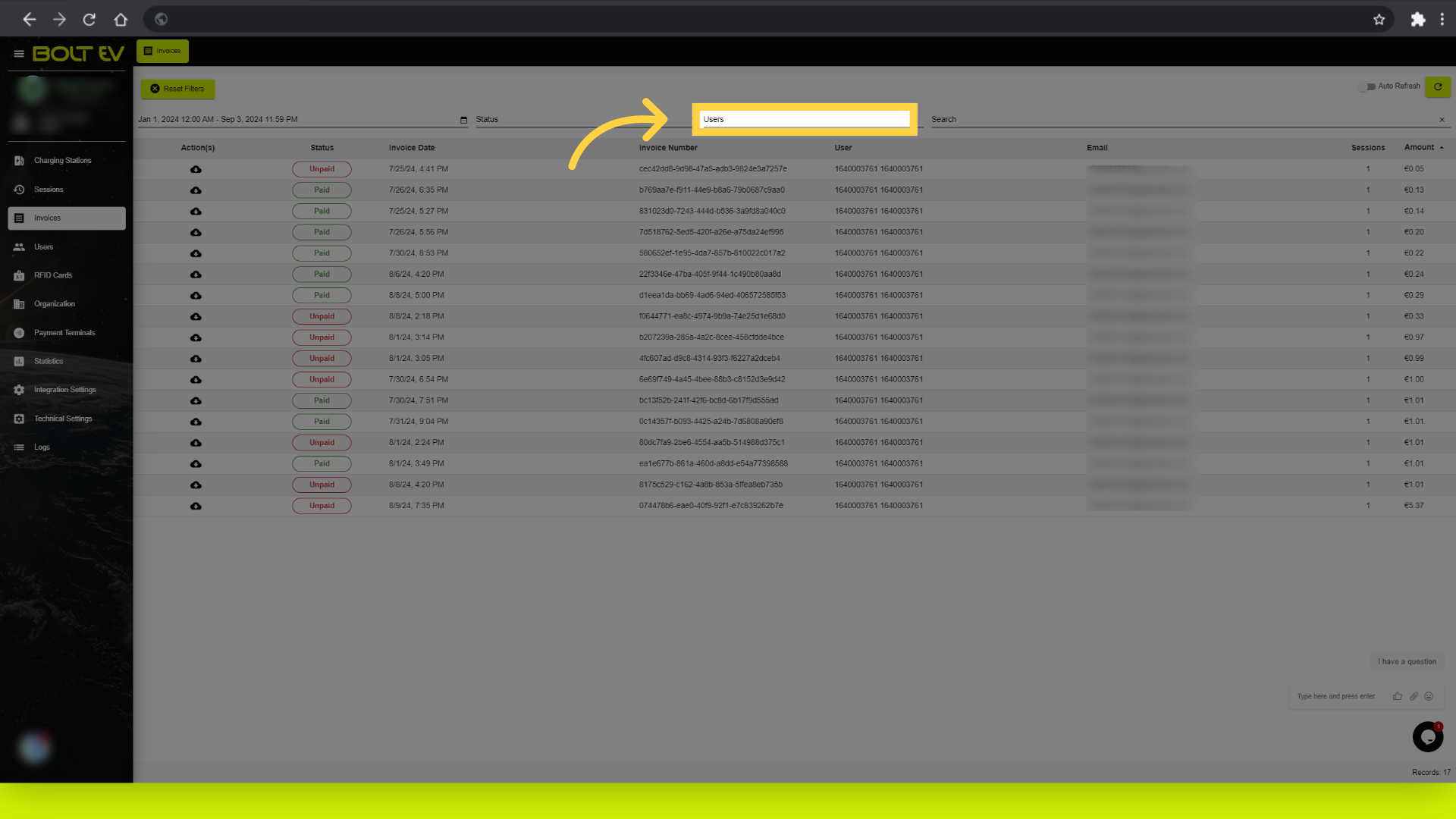
10. Click "Users"
Filter the results by selecting the user.
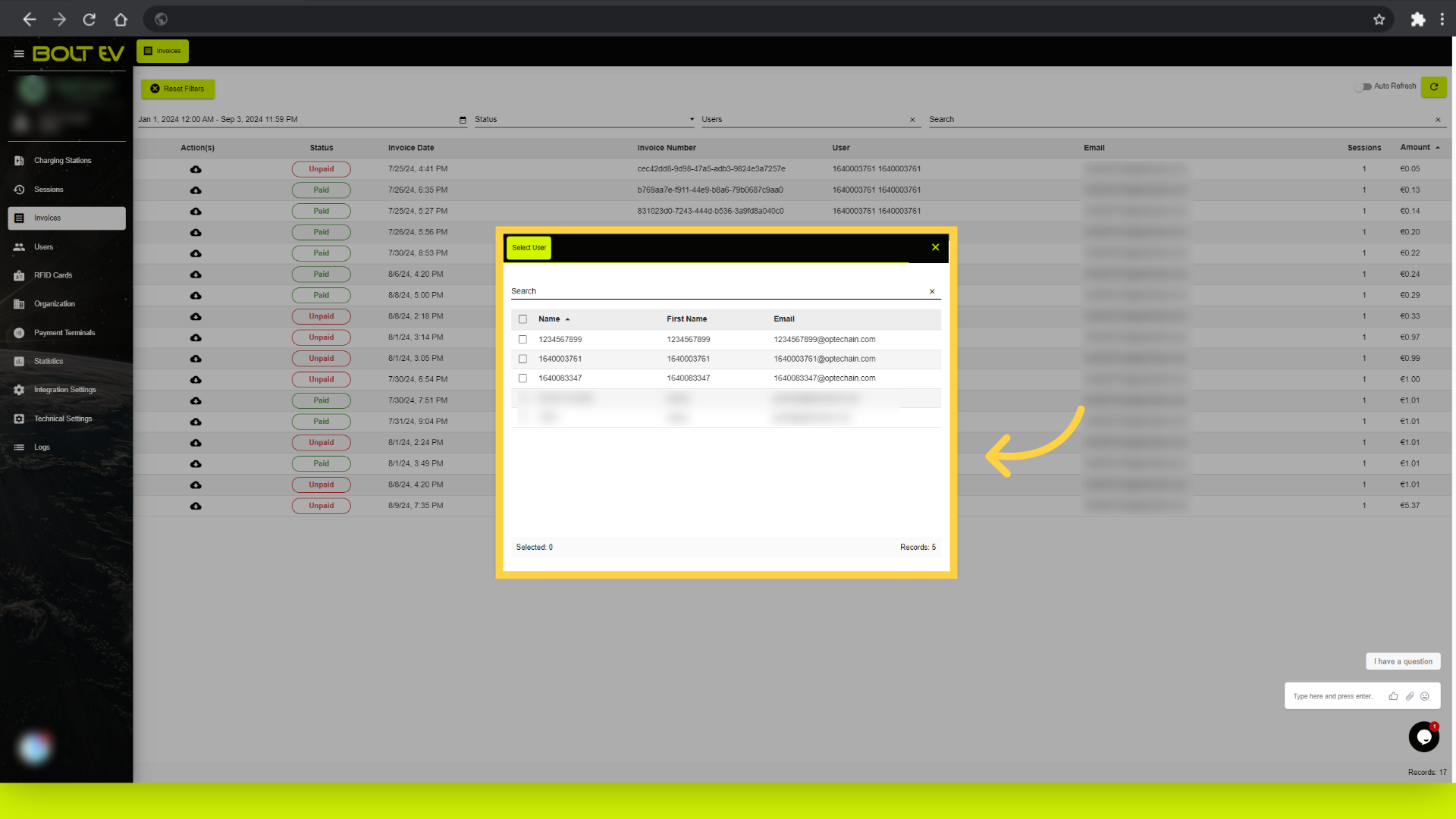
11. Select user
Choose a specific user.
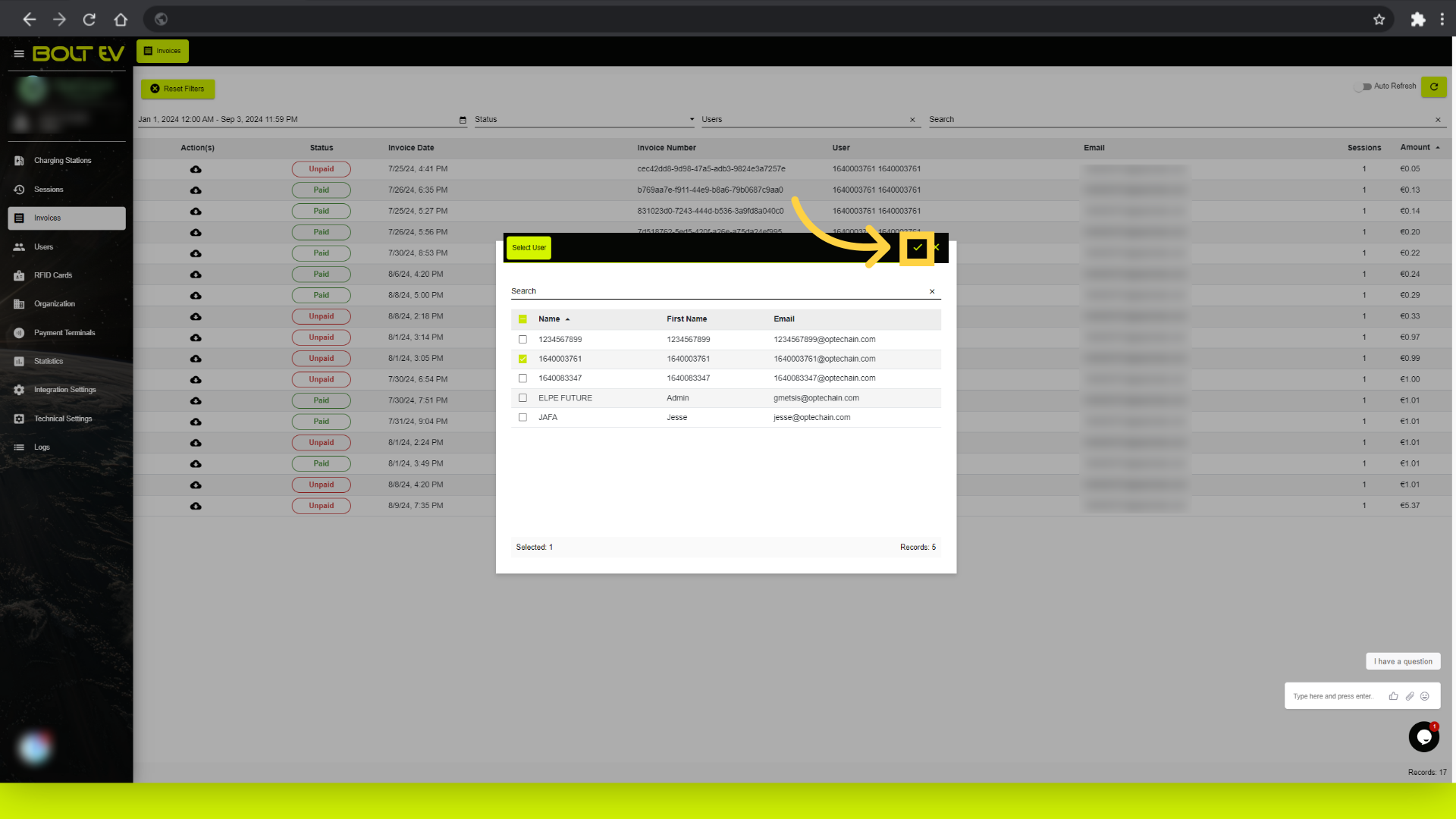
12. Click "Save"
Click save.
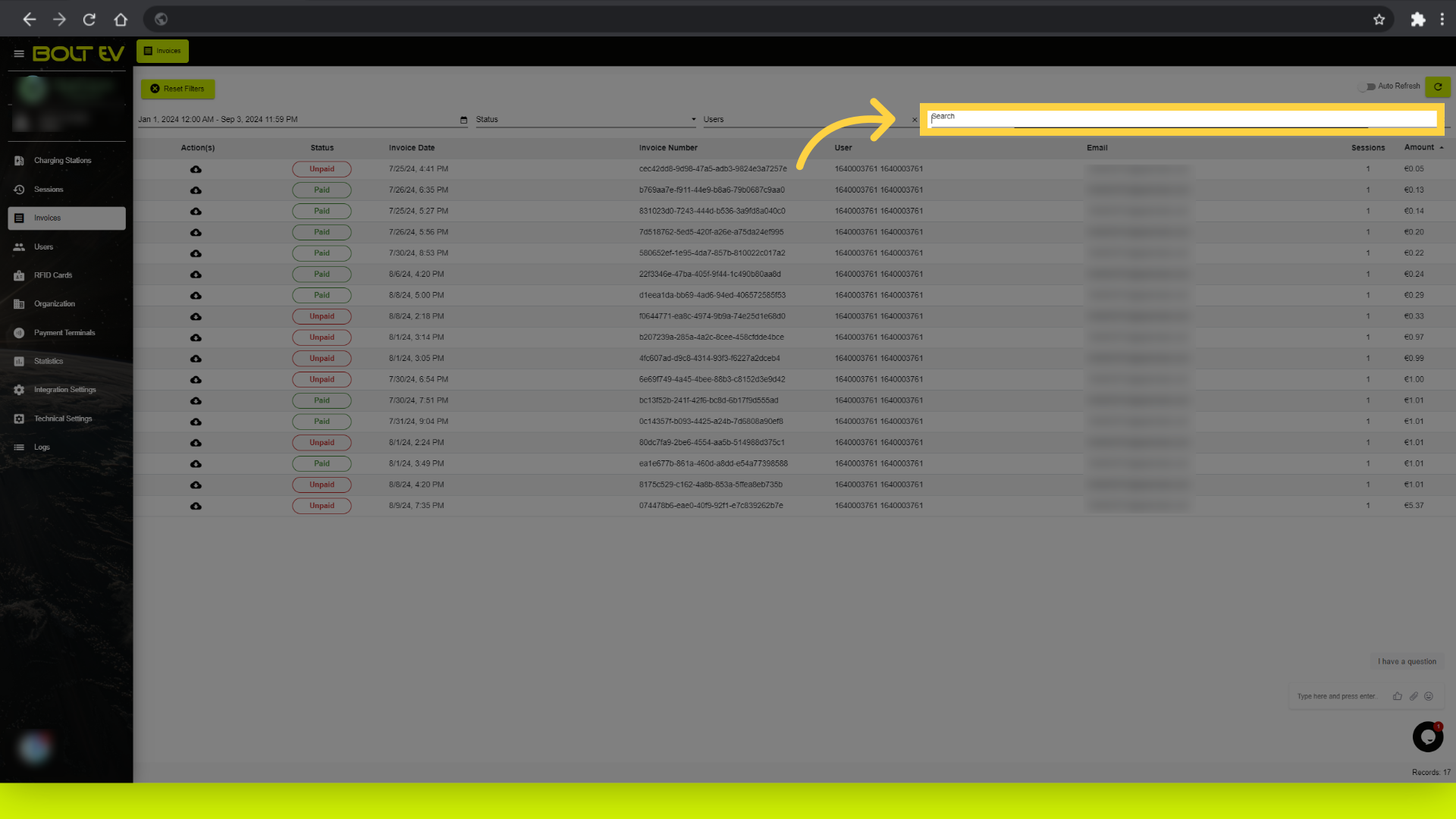
13. Click "Search"
Finally you can filter the results by mannually search on the search bar.
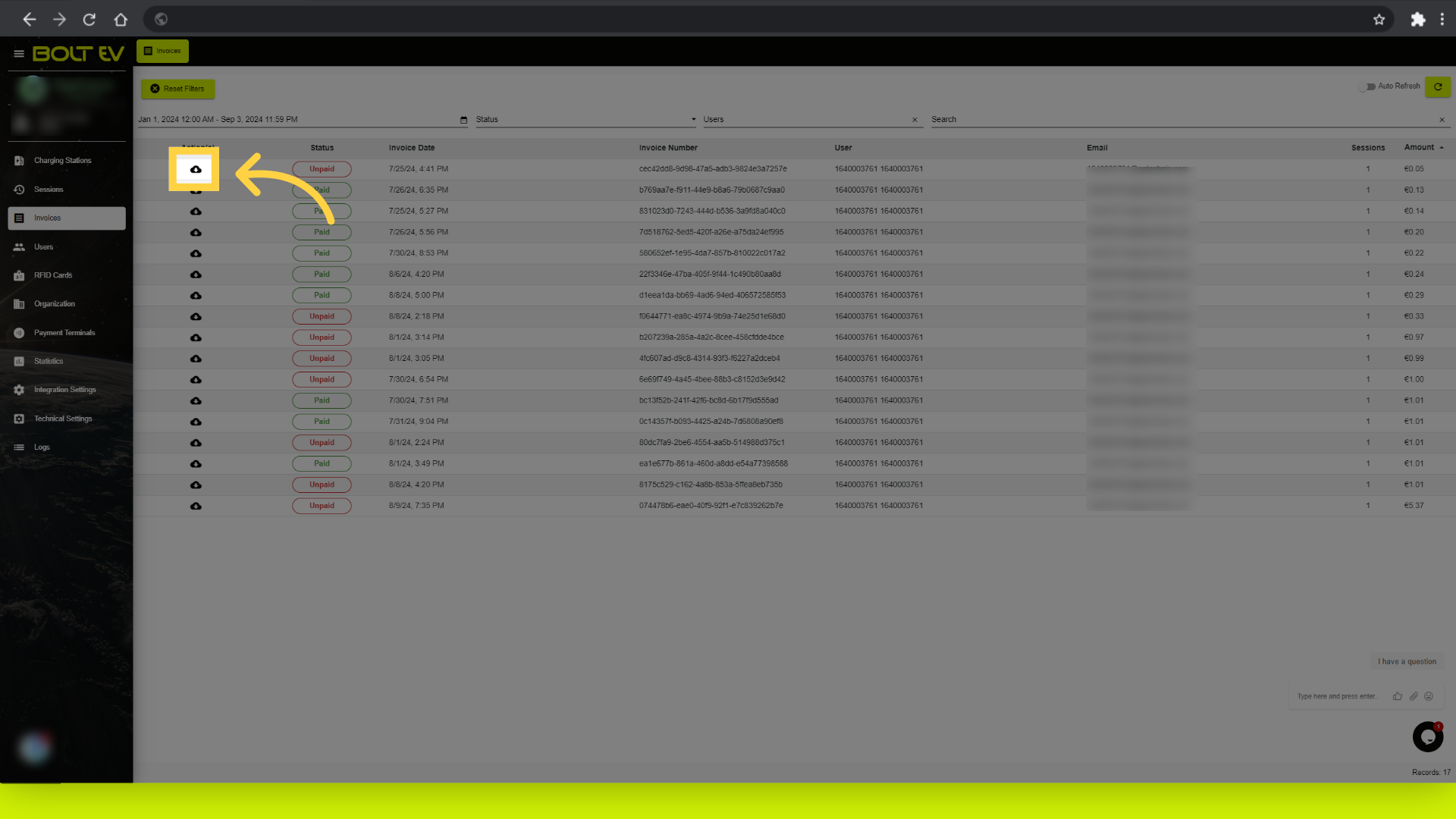
14. Click "Download"
Download the invoice.
The guide covered navigating to the Invoices tab, downloading invoices, and accessing the money transfer feature in Bolt EV platform. Thank you for your attention, I hope to see you on the next one!